
Products — Promo Codes
Create promo (coupon) codes for chosen products, personal codes for one patient, and global codes; what renewals charge; and how to let Client Staff manage codes.
Promo Codes is where you create discount codes patients type at checkout: shared codes for chosen products, global codes for everything, and personal codes for one patient. Left menu → Products → Promo Codes (the tag icon at the top right of the table). Client Admin; Client Staff once a Client Admin ticks Manage coupons in Settings → Staff permissions.
What you can do here
- Create a promo code for chosen products
- Give one patient a personal code
- Create a code that works on everything
- Edit or switch off a code
- Let Client Staff manage codes
Create a promo code for chosen products
Use this for a campaign, affiliate or first-order offer.
Start
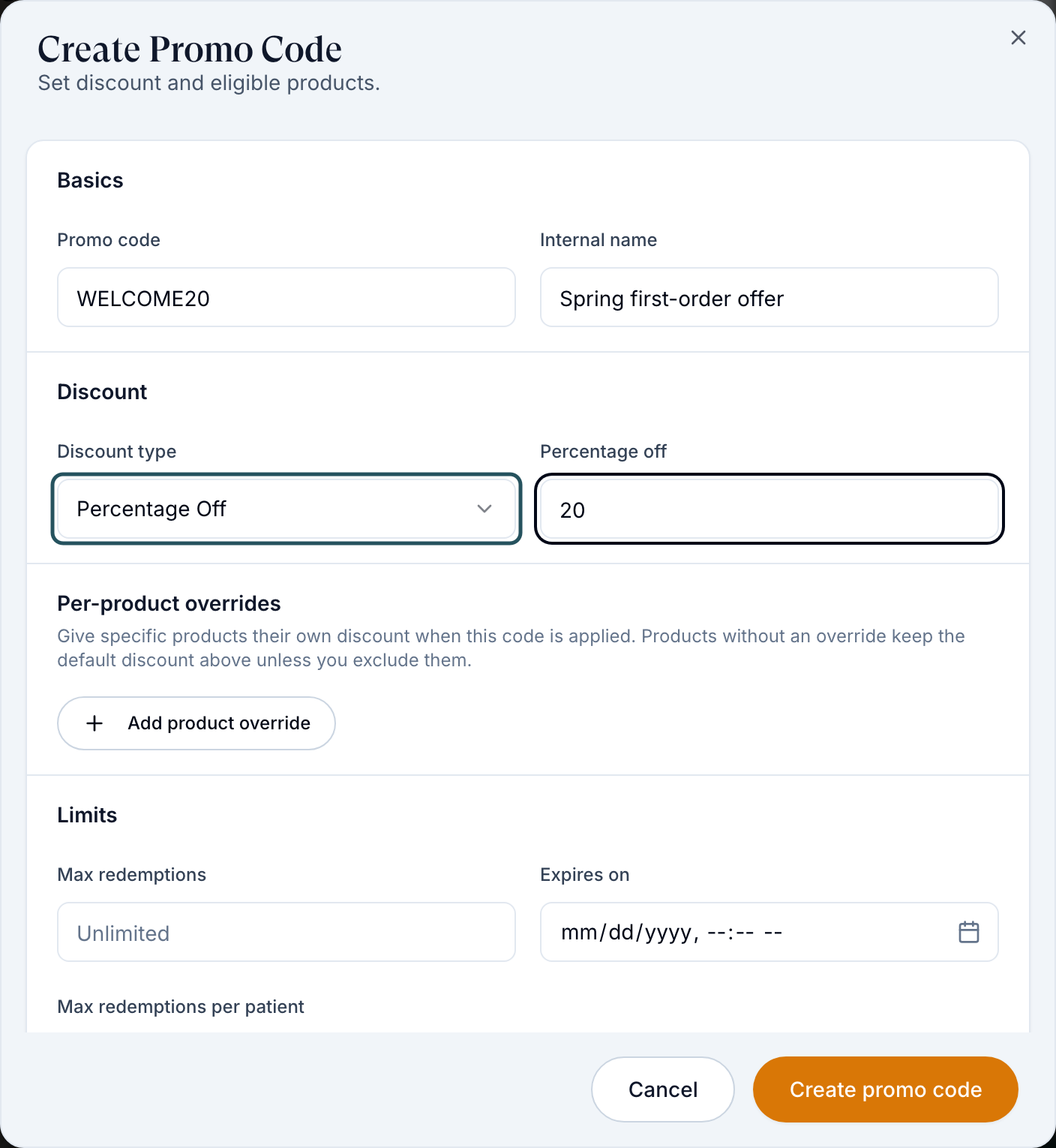
On the Promo Codes tab, click Add promo code.
Name it
Type the Promo code patients enter, and an Internal name only your team sees.
Set the discount
Pick Discount type: Percentage Off, Dollar Amount Off or Set Final Price, and type the value. Add product override gives one product a different discount.
Set limits
Optionally fill Max redemptions, Expires on, Max redemptions per patient, and switch on First-time patients only.
Choose the products
Under Eligible products, tick each product the code applies to. For affiliates, set Assignment type.
Create it
Click Create promo code.
You'll know it worked when the toast reads Promo code created and the row shows Active. Test it on the product's checkout link under Have a promo code?
Who can do this: Client Admin; Client Staff with Manage coupons.
A code discounts only the checkout it is entered on. Subscription renewals and refills charge the product's full price. For "$99 first month", use Set Final Price 99 with First-time patients only; month two bills the normal price.
Give one patient a personal code
Use this for a loyalty credit or a make-good nobody else can use.
Open Patient Codes
Click the Patient Codes tab, then Add patient code.
Pick the patient
In Select a patient, click the patient, then Continue.
Set it up
Fill Promo code and the discount. Under Notify, tick Email this patient their code to send it now, then click Create patient code.
You'll know it worked when the toast reads Personal promo code created (with and patient notified if emailed) and Redemption shows Not redeemed.
Who can do this: Client Admin; Client Staff with Manage coupons. Row menu → Duplicate to patients copies the offer to more patients.
Create a code that works on everything
Use this for a sitewide offer that also covers invoices.
Open Global
Click the Global tab, then Add global code.
Cap it
Fill the code and discount, always set Max redemptions and Expires on, then click Create global code.
You'll know it worked when the toast reads Global promo code created. It works on any product checkout, invoice or manual invoice; product limits and affiliate attribution don't apply.
Who can do this: Client Admin; Client Staff with Manage coupons.
Edit or switch off a code
Use this to change a discount or end a campaign.
Open the row menu
Click ⋯ on the code (Actions for promo code).
Choose
Edit promo code (Edit code on a personal code) to change it, or Deactivate to stop it. Reactivate brings it back.
You'll know it worked when Status reads Active or Inactive. Codes can't be deleted, so usage history stays.
Who can do this: Client Admin; Client Staff with Manage coupons.
Let Client Staff manage codes
Use this when your front desk or CX team hands out codes.
Open Staff permissions
Left menu → Settings → Staff permissions.
Grant it
Tick Client Staff on the Manage coupons row, then Save permissions.
You'll know it worked when staff see Promo Codes on Products, Labs and Visit Options. It applies to every Client Staff member.
Who can do this: Client Admin.
Statuses you'll see here
| Status | What it means | Who acts next | What you do |
|---|---|---|---|
| Active | Works, within its limits and dates | Patient | Nothing |
| Inactive | Switched off; refused at checkout | You | Row menu → Reactivate |
| Not redeemed / Redeemed | Whether that patient used their code | Patient | Reset redemption to allow another use |
What can go wrong
| What you see | Why | Fix |
|---|---|---|
| Patient says the code "does not apply to this product" | The product isn't in Eligible products, or the code expired or hit its limit. | Edit the code, tick the product, check Uses / Limit and Expires on. |
| Card fails on a heavily discounted order | Stripe can't charge less than $0.50 after the discount. | Keep the total at $0.50 or more, or mark the order paid. |
| No Promo Codes button | You're Client Staff without Manage coupons. | Ask a Client Admin (above). |
| Eligible products is empty | Only active products can take a code. | Activate the product on Products. |
| A personal code won't apply to a lab or package | Known problem reported by clients. | Use a promo code with that item ticked, and tell Support. |
Questions people ask
How do I add the promo code option at checkout?
It's already there: patients click Have a promo code? on the payment step.
How do you see if a patient entered a promo code?
Open the order on Orders; Order Details shows Promo code. Uses / Limit counts redemptions.
Can I give a discount on labs or visits?
Yes. Labs and Visits → Visit Options have the same Promo Codes button; tick the labs or visits under eligible items.
Where do I track an affiliate's codes?
Set Assignment type to Locked (one affiliate) or Shared (multiple affiliates), and use Export CSV for usage.
Related
Was this helpful?