
Your daily routine
Client Staff daily checks and Client Admin weekly checks, in order, each linking to the page guide: notifications, unreads, stuck patients, orders, failed prescriptions, renewals.
What to check, and in what order: Client Staff every day, Client Admin once a week. Each stop links to the guide for that page. Start on Left menu → Dashboard. Client Staff and Client Admin.
What you can do here
Work your daily checks (Client Staff)
Use this every morning, top to bottom. Most stops take a minute when nothing is waiting.
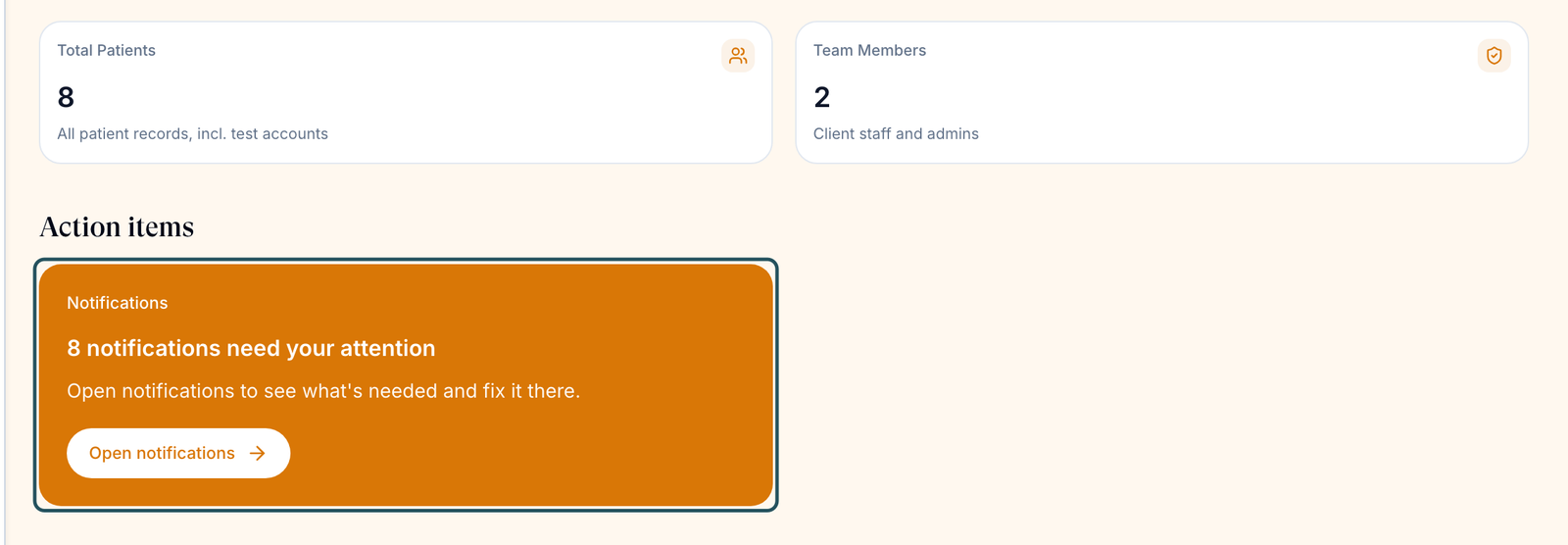
Dashboard → Open notifications
Fix each Visit alert, then Check again. See Dashboard.
Messages → Unreads, then Escalated
Answer patients. Send clinical questions to a provider with Request provider assistance. See Messages.
Patients → Needs attention
Patients stuck on onboarding, forms or a visit. No Needs attention filter means nobody is stuck. See Patients.
Forms → Submissions
Review new form submissions. See Forms.
Orders → Action needed, then Payment → Unpaid
Find out what each order waits on; message patients who haven't paid. See Orders.
Prescriptions → failed statuses
In All statuses, pick Failed, API Submission Failed, Error and Payment Failed. See Prescriptions.
Visits → History, and Support → Incoming Requests
Reschedule visits patients ask to move, and answer patient tickets. See Visits and Support.
You'll know it worked when Notifications and Unreads are empty, and every order you can move has moved.
Who can do this: Client Staff, and Client Admins. Refunds, payment requests, booking visits and subscriptions need a tick in Staff permissions.
In a clinic: before you open, check Visits → History filtered to Confirmed for today's video visits; there's no day calendar. Selling online: unpaid and held orders are your biggest queue, so spend most of your time on Orders.
Work your weekly checks (Client Admin)
Use this once a week, on top of anything your staff escalate.
Dashboard → Action items
Payment needed, Enable NMI Customer Vault, and the red platform fee banner. See Dashboard.
Subscriptions → Needs attention
Failed and unpaid renewals. See Subscriptions.
Orders → Action needed
Review lab and Review results wait on an admin; unpaid orders need a Send reminder. See Orders.
Products → Formulary and Payment filters
Unpaired and Needs payment setup should both be empty. See Products.
Billing and Reports
Check payments came in and read the week's numbers. See Billing and Reports.
Dashboard → Users
Chase Pending invites and deactivate leavers. See Your team.
You'll know it worked when Needs attention on Subscriptions reads 0 and no invite sits at Pending.
Who can do this: Client Admin.
What can go wrong
| What you see | Why | Fix |
|---|---|---|
| Staff get Only Client Admin can email patients | Known problem: staff see Send email and Send reminder on Orders but can't send | Use Message patient, or ask a Client Admin. |
| A button your colleague uses is missing | You're Client Staff | Ask a Client Admin to tick it in Staff permissions. |
| The left menu disappears on Messages | The inbox takes over the sidebar | Click Back to navigation. |
| A queue looks empty, but patients are waiting | A filter is still on from last time | Click Clear filters. |
Questions people ask
A new patient never received the invite email, and it won't let me resend. What now?
On Patients, row menu ⋮ → Send Login Link. If nothing arrives, ask a Client Admin whether Disable patient emails and SMS is on in Settings → Notifications.
As Client Staff, why can't I schedule a patient's appointment?
Anyone can reschedule. Booking a new visit needs the Create visits permission from a Client Admin.
Can Client Staff do refunds?
Yes, once a Client Admin ticks Issue refunds and void payments in Staff permissions.
Where is my patient's prescription?
Open their order on Orders and read the newest History line. See Orders.
Related
Was this helpful?