
Products
Turn your network's protocols into products, price them, require a visit or labs, sell per dose or as a package or subscription, and share checkout links.
Products is the catalog patients buy from: your network's protocols turned into products you price and share. Left menu → Products. Client Admin; Client Staff can view, copy links and send offers, not create or price. Not on Review-only accounts.
What you can do here
- Add a product from a network protocol
- Change a price, or hide or pause a product
- Require a visit or labs first, or stop selling in a state
- Sell a product as a subscription
- Sell each dose or supply length separately
- Bundle products into a package
- Share a product with a patient
Add a product from a network protocol
Use this to sell a protocol your network enabled.
Three layers: a protocol is your network's clinical template. A product is your copy, with your name and price. A Formulary item is a pharmacy's medication; pairing tells providers which to send. New protocols and doses come from your network.
Start
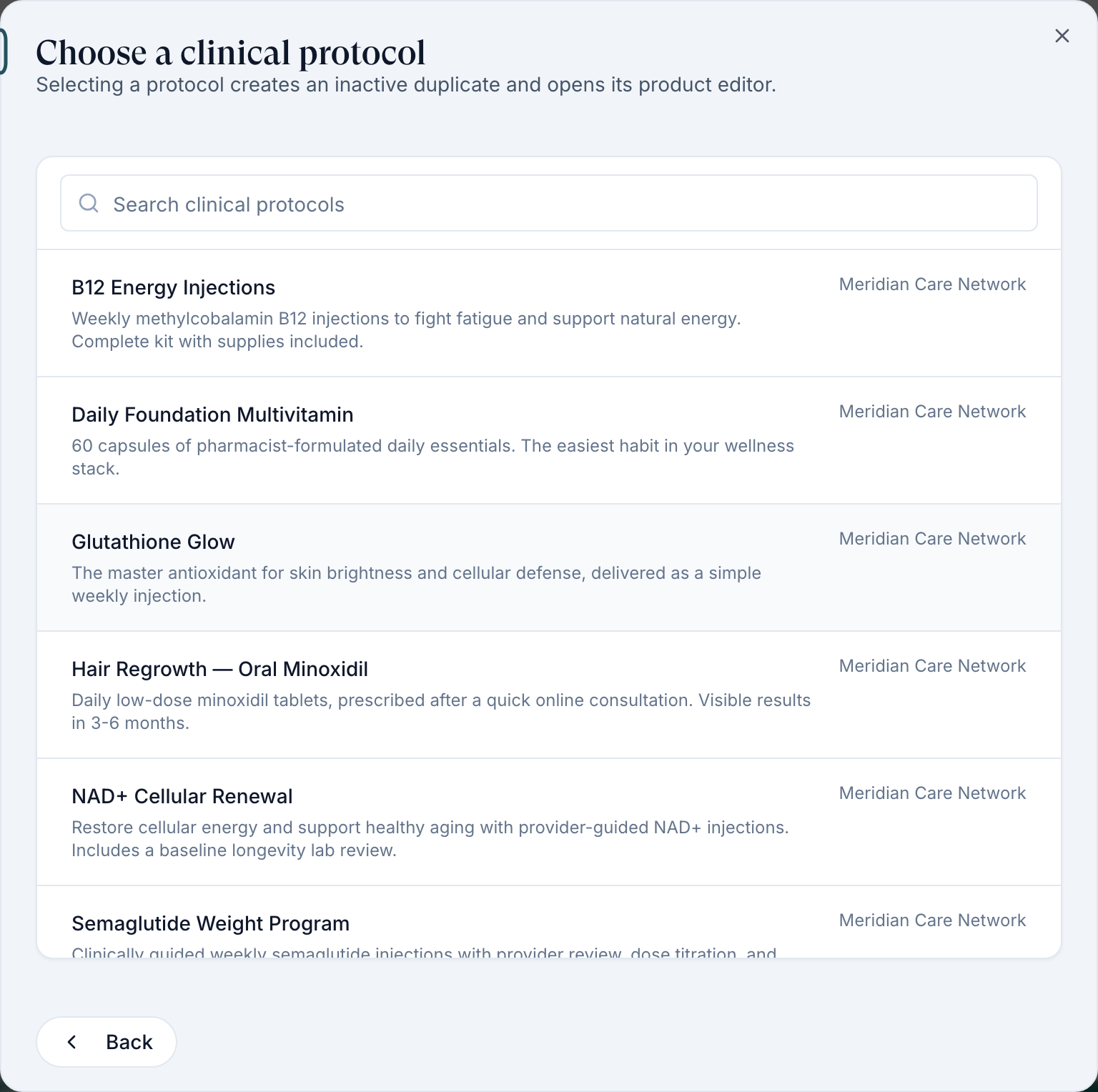
Click Create (the + button at the top right of the table), then Product.
Pick the protocol
Under Choose a clinical protocol, click one. This creates an inactive copy straight away and opens Edit product.
Write what patients see
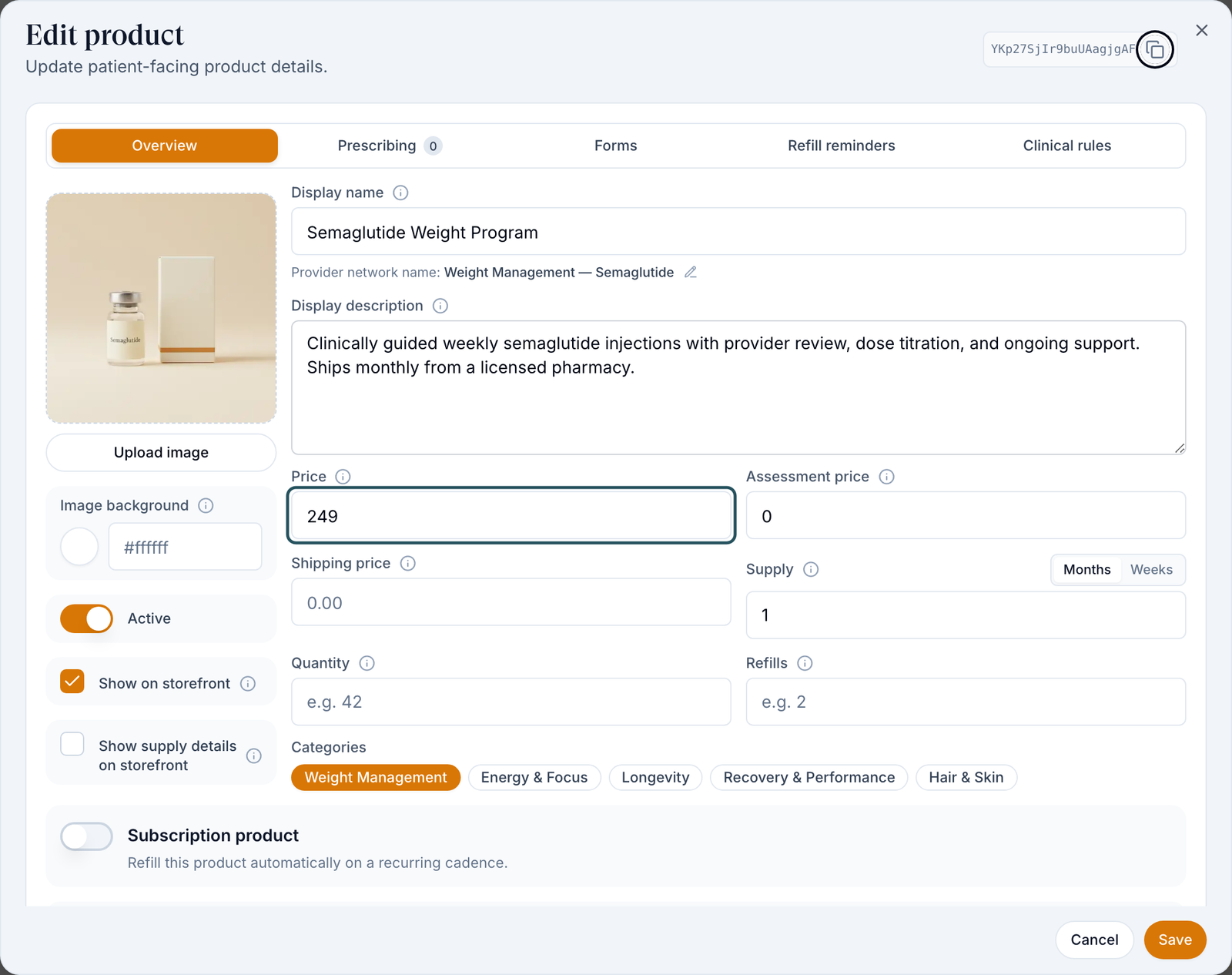
On Overview, set Display name, Display description, Upload image and Categories.
Price it
Fill Price, Assessment price (the visit; not refunded on denial) and Shipping price. Your cost is on Formulary.
Turn it on
Switch on Active, tick Show on storefront, then click Save.
You'll know it worked when the row has no Inactive line under its name. Next, pair it on the Paired formulary column (how).
Who can do this: Client Admin.
Change a price, or hide or pause a product
Use this to reprice, hide or stop a product.
Open it
Row menu ⋯ → Edit details, or click Config view (sliders icon, right of the filters) to edit Price and Storefront for many rows.
Hide or pause
Untick Show on storefront (links still work), or row menu → Deactivate to stop all sales.
You'll know it worked when the row shows Hidden from storefront or Inactive.
Who can do this: Client Admin.
Require a visit or labs first, or stop selling in a state
Use this when a product needs a live assessment or lab results first.
Open the product
Row menu → Edit details, Overview tab.
Require a visit
Switch on Requires sync visit and set Require sync visit for to All, First-time patients or First purchase.
Require labs
Switch on Requires labs and tick the Required lab options. Lab First Consultation charges for the lab first and the product only after approval.
Block states
Click Unavailable states and pick the states you can't serve, then Save.
You'll know it worked when the row shows the video or flask icon (Telehealth visit required, Labs required).
Who can do this: Client Admin. Required by the provider network or Lab rules set by your network means only the network can change it.
Sell a product as a subscription
Use this to bill on a schedule, for example monthly GLP-1.
Switch it on
In Edit details, turn on Subscription product and set Every and Period.
Choose checkout and billing
Tick One-time purchase, Subscription or both, decide on Charge the saved card automatically, then Save.
You'll know it worked when checkout offers the subscription. Manage enrolments on Subscriptions.
Who can do this: Client Admin.
Sell each dose or supply length separately
Use this for 1-month vs 3-month, or 2.5 mg vs 5 mg.
Duplicate
Row menu → Duplicate. The copy keeps the protocol and its forms.
Make it distinct
Rename it, set its Price, Supply (Months or Weeks) and Quantity, and pair the exact strength on Paired formulary.
You'll know it worked when both rows show their own pairing.
Who can do this: Client Admin.
Bundle products into a package
Use this to sell several items, labs and visits included, for one price.
Start
Click Create → Package.
Pick the items
Under Choose products for the package, tick at least two.
Create and price
Click Create package. It starts inactive at the items' total; in the editor set its price, switch on Active and Save.
You'll know it worked when the toast reads Package created. Finish its details before publishing.
Who can do this: Client Admin. Each item must be ready to sell.
Share a product with a patient
Use this to send an offer, or link from an email or your website.
Copy a link
Click the link icon on the row, then Copy next to Product-first (pay first), Assessment-first (forms, then pay for the visit only) or Intake-first (forms, then pay for the product).
Or send an offer
Row menu → Send to Patient, pick the patient and send.
You'll know it worked when the toast confirms the copy or send. Links only work while the product is active.
Who can do this: Client Admin and Client Staff.
Statuses you'll see here
| Status | What it means | Who acts next | What you do |
|---|---|---|---|
| Inactive | Off sale; links don't work | You | Row menu → Activate |
| Hidden from storefront | Active; links still work | You | Tick Show on storefront |
| Red ! by the name | Set up a payment processor before patients can purchase this product. | You | Connect a processor on Billing |
| Needs pairing | No pharmacy medication paired | You | Click it and pair |
What can go wrong
| What you see | Why | Fix |
|---|---|---|
| A (Copy 1) row you didn't mean to make | Clicking a protocol creates the copy at once; Cancel doesn't remove it. | Leave it Inactive, or row menu → Delete this duplicate. |
| Active but patients can't find it | Show on storefront is off, it has no Price, or the patient's state is in Unavailable states. | Fix that field. Price filter → No price finds unpriced rows. |
| The protocol or dose you want isn't in the list | Your network hasn't enabled it for you. | Ask your network; it then appears under Create → Product. |
| Approved labs required when saving | The product needs labs but none are ticked. | Tick a Required lab options entry (see Labs). |
| Failed to send on Send to Patient | An offer already waits for that patient, or no processor is set up. | Ask the patient to sign in; connect a processor. |
Questions people ask
Can I create a product from scratch?
Not a prescription product: those start from a network protocol. For a consult with no medication, use a visit on Visits, or a line item on Orders → Create order.
Can I create and update categories myself?
Yes. Click Categories (tags icon, top right), then Add Category.
If I change a price, what happens to open orders?
Open orders and existing subscribers keep their price. New checkouts and new subscriptions use the new one.
Related
Was this helpful?