
Patient profile
Update a patient's address or phone, unblock a patient who can't log in, check out or see forms, request product approval, book a visit, pause a subscription and leave staff comments.
The patient profile is one patient's full record in tabs, with a staff comments column on the right. Left menu → Patients, then click the patient (any patient name in the app opens it too). Client Admin and Client Staff.
What you can do here
- Update an address or phone
- Help a patient who can't sign in, check out or see forms
- Get a patient approved for a product
- Book a visit or ask the patient to schedule
- Pause, resume or cancel a subscription
- Leave a note for your team
Update an address or phone
Use this when a patient moves or changes number.
Open the Profile tab
It opens first, with Profile Overview at the top.
Change the field
Edit Phone, or the Mailing address fields: Street address, Apt, suite, etc. (optional), City, State, ZIP code.
Click out of the field
There is no Save button. Each field saves when you leave it.
You'll know it worked when a spinner, then a green tick, shows next to the field's label.
Who can do this: Client Admin and Client Staff.
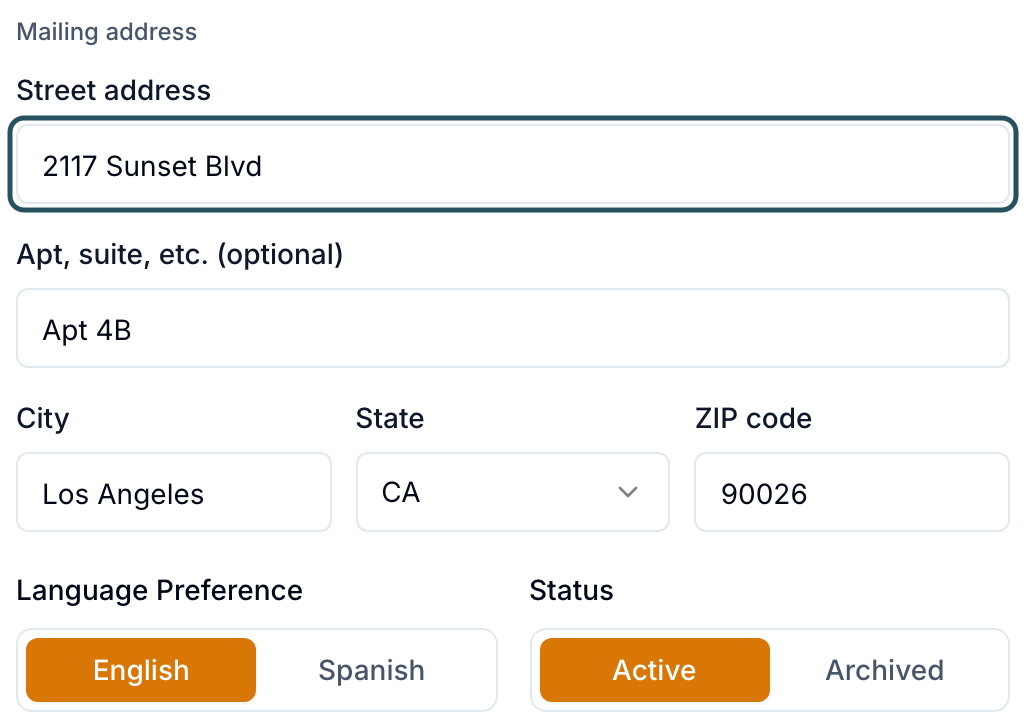
A PO Box puts pharmacy orders on hold. A new address doesn't reach a prescription the pharmacy already has: raise a ticket in Support to OnlyScripts (or your pharmacy). Billing address comes from checkout and can't be edited.
Help a patient who can't sign in, check out or see forms
Use this when a patient says "I can't log in", "checkout won't let me finish" or "I don't see my forms".
Check the status badge
Next to the name. Pending: invite not accepted. Deactive: Patient actions → Activate. Archived: Restore under Status on the Profile tab.
Send a fresh sign-in link
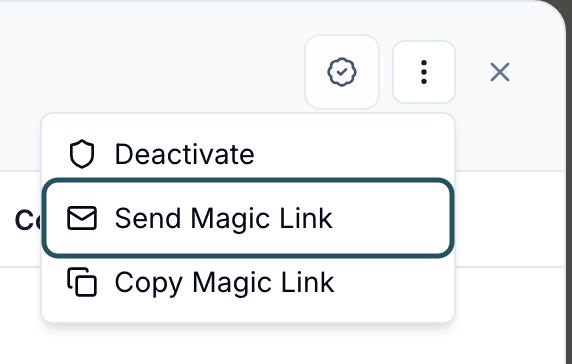
Patient actions (⋮, top right) → Send Magic Link (valid 3 hours), or Copy Magic Link to paste into their conversation.
Check their forms
Forms tab: Pending Form Requests lists what is still open. Request Form sends forms again.
Check the order
Orders tab → click the order; the newest History line names the blocker. Holds such as a PO box or missing driver license are in Messages → Notifications.
You'll know it worked when the toast reads Magic link sent to and the patient's email.
Who can do this: Client Admin and Client Staff.
Get a patient approved for a product
Use this when a provider should review a patient for a product first, such as a transferred patient.
Click Request product approval
The icon at the top, left of Patient actions.
Pick the products
Tick them under Products for approval.
Choose the review
Async review: a provider reviews from the queue, and you choose whether to charge the async review fee. Live (sync) review: the patient books a video visit, with no visit charge. Add a Note for the provider (optional).
Send it
Click Send for review.
You'll know it worked when the toast reads Approval request sent for provider review, or the patient will complete the required forms first.
Who can do this: Client Admin and Client Staff.
To send a product offer (a checkout link), use Products → row menu → Send to Patient. Forms tab → Request Form → Product approval sends only a product's intake and consent forms.
Book a visit or ask the patient to schedule
Use this when a patient needs a video visit.
Click Schedule
Visits tab, top right.
Choose how
Ask Patient to Schedule lets the patient pick the time. Book Visit for Patient books a provider's slot now.
Pick the visit and finish
Pick the visit type, click Continue, answer Is this related to a specific order? and Do you want to charge the patient for this visit?, then click Create Request.
You'll know it worked when the visit shows on the Visits tab.
Who can do this: Client Admin. Client Staff only when a Client Admin ticks Create visits in Settings → Staff permissions.
Pause, resume or cancel a subscription
Use this when a patient asks to skip, restart or stop a plan.
Click the subscription badge
In the header, next to the status: Active subscription, or Subscription · and its state, such as Paused.
Choose the action
Open ⋮ on the subscription, pick Pause (billing stops), Resume (a new cycle starts today) or Cancel (final), then confirm.
You'll know it worked when the toast reads Subscription paused., Subscription resumed. or Subscription cancelled.
Who can do this: Client Admin. Client Staff only with Manage subscriptions in Settings → Staff permissions. No badge means no active subscription.
Leave a note for your team
Write the note
In the Comments column on the right, type in Add a staff comment….
Choose who reads it
Internal is your team only; Shared also shows it to your provider network. Click Post comment.
You'll know it worked when the toast reads Comment posted. Patients never see comments.
Who can do this: Client Admin and Client Staff. You can edit or delete your own.
What's on this page
| Tab | What it does |
|---|---|
| Profile | Contact details, Status, Last provider, health history |
| Forms | Submitted forms (View), open requests, Request Form |
| Visits | Every visit and its status; Schedule |
| Orders | Their orders; click one for Order Details |
| Prescriptions | Row ⋮ → View details for pharmacy status |
| Labs | Lab Results, Lab Orders, Request Lab, Upload Lab |
| Documents | Upload images and PDFs, including ID photos; Add Note |
| Messages | The patient's conversation |
| Activity | What happened on this record |
What can go wrong
| What you see | Why | Fix |
|---|---|---|
| No Schedule button on Visits | Client Staff without Create visits | Ask a Client Admin to tick it in Staff permissions. |
| Changing the email created a second account | Known problem: a checkout after an email change can create a duplicate account | Raise a ticket in Support with both emails; GEN Health merges them. |
| A medication won't save without a dosage | Dosage is required for each medication row | Enter a dosage, or clear the medication name. |
| A document was uploaded to the wrong patient and has no Delete | Only MSO Consultation Notes can be deleted from here | Raise a ticket in Support with the patient's name. |
Questions people ask
Can we change a patient's login email from our side?
Yes. Edit Email on the Profile tab; the patient signs in with the new address from then on.
New patient was set up with the wrong provider. How do we fix it?
Change Last provider on the Profile tab; the next completed visit updates it again. To move an open visit, ask your provider network.
She's trying to complete forms. What else does she need to do?
Open Forms for Pending Form Requests, then the Orders tab History. A missing ID photo is a common blocker: patients re-upload it from their portal, or you can Upload it for them on Documents as Patient ID Front.
Related
Was this helpful?