
Forms
Build intake and consent forms, attach them to products or all patients, share public links, and review submissions; and how your network's forms fit in.
Forms is where you build your own intake and consent forms, choose who must fill them in, share them as public links, and review patients' answers. Left menu → Forms. Client Admin; Client Staff can read forms and work the Submissions tab. Available on every account.
What you can do here
- Build an intake form
- Attach a form to products, or require it for everyone
- Collect a signed consent
- Share a form as a public link
- Turn a PDF into a form
- Review submissions
Build an intake form
Use this to ask questions your provider network's forms don't cover.
Network forms vs yours: your provider network's intake and consent forms attach to its products automatically and run first. They don't appear here and you can't edit or detach them; ask your network. This page holds only your own extra forms. A product's Forms tab on Products lists both.
Start
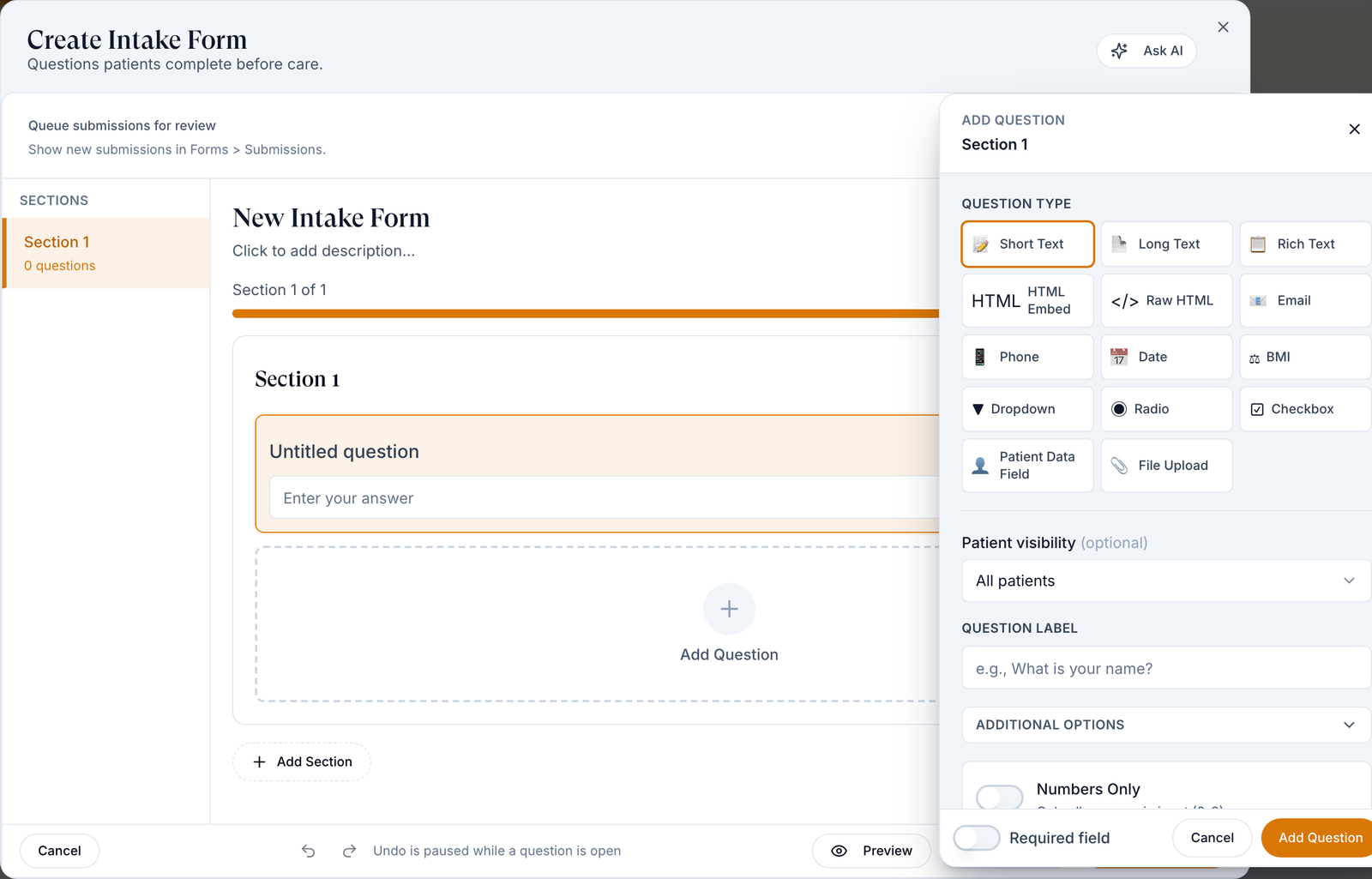
On Patient Intakes, click Add, then Create it on your own.
Name it
Click New Intake Form and type the name.
Add a question
Click Add Question, pick a QUESTION TYPE (for example Short Text, Dropdown, Date), type the QUESTION LABEL and switch on Required field if needed.
Save the question
Click Add Question at the bottom of the editor. Repeat; Add Section starts a new page.
Publish
Click Preview to check, then Publish Form (or Save Draft to finish later).
You'll know it worked when the toast reads Intake form published. Next, target it, or nobody is asked to fill it in.
Who can do this: Client Admin.
Attach a form to products, or require it for everyone
Use this to decide who must complete a form.
Open targeting
Click Click to assign in the Product column, or row menu ⋮ → Manage Targeting.
Choose who
Require for ALL patients, or Require for specific products or categories and tick them under Products or Categories.
Save
Click Save targeting.
You'll know it worked when the toast reads Form targeting updated and the Product column names the products. Visits take forms under Attached forms on Visits.
Who can do this: Client Admin.
Collect a signed consent
Use this for an acknowledgement each patient signs once.
Build it
On Patient Consents, click Add → Create it on your own. Add a Rich Text question with your wording and switch on Require Signature or Require Acknowledgment.
Require it
Publish, then Manage Targeting → Require for ALL patients.
You'll know it worked when new patients are asked to sign. Signed copies are saved to the patient's Documents.
Who can do this: Client Admin.
Share a form as a public link
Use this for a sign-up or pre-screen from an ad or your website, with no account needed.
Turn it on
Row menu → Enable Public Link.
Copy it
Row menu → Copy Public Link; Open Public Link shows it as a patient sees it.
You'll know it worked when the toast reads Public link copied and the row shows Public link enabled. The link never expires; use Disable Public Link when the campaign ends.
Who can do this: Client Admin.
Turn a PDF into a form
Use this to start from an existing paper form.
Upload
Click Add → Upload a PDF, name it and choose the file (PDF or image, up to 10 MB).
Check it
Click Generate Form, then read every question the builder filled in before you publish.
You'll know it worked when the builder opens with the questions in place.
Who can do this: Client Admin.
Review submissions
Use this to act on answers before a provider sees them, or to chase unfinished public forms.
Open the queue
Click Submissions. Patient submissions lists answers from forms with Queue submissions for review switched on in the builder.
Act on one
Click Review, then Request forms, Request prescription or No action.
You'll know it worked when the row's Status changes from pending. In-progress form starts lists people who began a public form and stopped.
Who can do this: Client Admin and Client Staff. Request prescription appears only if your network allows client requests.
Statuses you'll see here
| Status | What it means | Who acts next | What you do |
|---|---|---|---|
| Draft | Saved, never published; no patient sees it | You | Publish it |
| Active / Inactive | The Status switch: live, or retired | You | Flip the switch |
| pending / reviewed / actioned / dismissed | Where a submission stands | Your team | Review the pending ones |
What can go wrong
| What you see | Why | Fix |
|---|---|---|
| A form you just saved is missing from the list | The status filter starts on Active, which hides drafts. | Click the × on Active, or pick Draft. |
| Published, but no patient is asked for it | It has no targeting. | Target it. |
| Patients answer two similar forms | Your form repeats the network's. | Deactivate yours; the network's can't be removed here. |
| Patient told you are not eligible to continue | An answer matched a DISQUALIFIERS rule on your form or the network's. | Check your rules; ask your network about theirs. |
| A patient can't get past a question or date | Known problem with some question types. | Send Support the patient, form and a screenshot. |
Questions people ask
Should I be using the forms I've created, or the network's?
The network's are required for its products and run automatically. Add your own only for extra questions or consents.
We need a generic intake questionnaire URL.
Build the form, then copy its public link.
How do I see what forms a patient is missing?
Open the patient's Forms tab, or their order on Orders; Request Form resends them.
Related
Was this helpful?