
Go live
The order to set up your account, from empty to your first paid patient, with skip rules, the checks that silently block a sale, and how to test and request go-live out of sandbox mode.
The order to set up your account, from empty to your first paid patient, with what you can skip; each line links to the steps. Start from Left menu → Dashboard. Client Admin.
What you can do here
- Set up your account
- Set up what patients buy
- Check nothing blocks a sale
- Test an order, then go live
Set up your account
Do these first, in this order.
| # | Do this | Skip if |
|---|---|---|
| 1 | Finish account setup | — |
| 2 | Check your provider network is linked | — |
| 3 | Put a card on file for GEN Health fees | Your parent account pays for you (affiliated client) |
| 4 | Connect your patient payment processor | Affiliate or Review-only |
| 5 | Turn on pharmacies and the pharmacy payment method | You sell no prescription products |
| 6 | Add your logo, colours and domain, then the portal menu and checkout order | — |
| 7 | Invite your team and set Staff permissions | You work alone |
You'll know it worked when each row is done or skipped.
Who can do this: Client Admin.
Set up what patients buy
| # | Do this | Skip if |
|---|---|---|
| 1 | Create and price products from your network's protocols | — |
| 2 | Pair each prescription product with a medication and pharmacy | No prescription products |
| 3 | Add your own intake and consent forms | Your network's forms, which attach on their own, are enough |
| 4 | Turn on labs and lab requirements | No product needs labs |
| 5 | Set up video visit options | You don't sell visits |
| 6 | Sell products on a schedule | No recurring products |
| 7 | Put checkout on your website | You only send checkout links |
You'll know it worked when each row is done or skipped.
Who can do this: Client Admin.
Check nothing blocks a sale
Each stops an order without an error on screen.
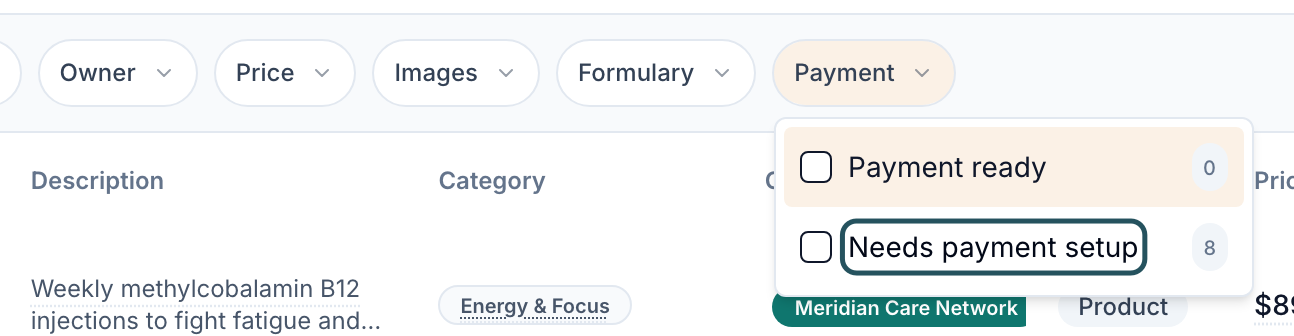
Products → Payment
Needs payment setup: no processor is connected, so checkout runs in test mode. Connect one.
Products → Formulary
Unpaired: no medication and pharmacy. Pair them.
Dashboard → Action items
A Payment needed card means pharmacies can't charge you. Fix it.
You'll know it worked when both filters show 0 and Action items has no Payment needed card.
Who can do this: Client Admin.
Test an order, then go live
Buy one of your own products the way a patient would.
Make a 100% promo code
See Promo codes. Limit it to your test product.
Buy as a patient
Copy a checkout link from the product on Products. Open it in a private window; use your own email and a street address.
Follow the order
Watch it on Orders. If it stalls, Messages → Notifications says what to fix.
Clean up
Cancel test orders, turn off the test code, and archive test patients.
Request go-live
If SANDBOX MODE shows at the bottom of the left menu, click it, then Request go-live. Your provider network approves it.
You'll know it worked when the test order reaches provider review, and SANDBOX MODE leaves the menu once your network approves.
Who can do this: Client Admin. Only your primary provider network approves go-live.
In a clinic: also test a desk payment: Create order on Orders, take the card on your terminal, then mark it paid. Selling online: run one real card through your live processor, then refund it.
What can go wrong
| What you see | Why | Fix |
|---|---|---|
| Checkout says test mode, no live payment, or a red ! shows on every product | No payment processor is connected | Connect one on Billing. |
| The test order never reaches a provider | Missing forms, or an unpaired product | Messages → Notifications: fix what the alert names, then Check again. |
| Approved, but nothing shipped | Sandbox mode, or no pharmacy payment method | Request go-live; fix any Payment needed alert. |
| A real patient ordered in sandbox mode | Sandbox orders never reach a pharmacy or lab | Request go-live before launch; ask GEN Health Support about the order. |
Questions people ask
What does sandbox mode actually do?
Everything works as usual, but prescriptions and lab orders aren't sent, and orders are marked as sandbox orders. It turns off when your network approves go-live.
Before turning off sandbox mode, must we cancel open test orders ourselves?
Yes. Cancel each one on Orders before you request go-live.
Do we need a test card, with Billing set to None, to test?
No. None on Billing is test mode: orders go through unpaid. That's separate from sandbox mode. Use a 100% promo code instead.
We don't see a Sandbox mode toggle. Where is it?
Only your network or GEN Health switches it. You click SANDBOX MODE → Request go-live.
Related
Was this helpful?