
Settings — Portal experience
Everything signed-in patients see: intake-first or payment-first checkout, ID and age rules, patient messaging, the patient menu and dashboard, patient emails and texts, and custom patient fields.
Settings — Portal experience decides what signed-in patients see: checkout order, patient rules such as ID checks, messaging, the patient menu and dashboard, patient emails and texts, and your own patient fields. Left menu → Settings → Portal experience. Client Admin only. Not shown on review-only accounts.
What you can do here
- Choose whether intake or payment comes first
- Set patient rules: ID checks, age limit, receipts, order review
- Control whether and how patients message you
- Edit the patient menu and dashboard
- Turn individual patient emails and texts on or off
- Collect your own patient fields
Choose whether intake or payment comes first
Use this to decide whether signed-in patients answer health questions before or after they pay.
Set the order
In Checkout, set Products and Labs to Intake first or Payment first.
Choose the disclaimer
Public checkout disclaimer shows the "changes cannot be made once an order is submitted" line as Hidden, Text, or a Checkbox the patient must tick.
You'll know it worked when your choice is highlighted and your next test purchase follows it.
Who can do this: Client Admin. Checkout links shared from Products carry their own order (for example Assessment-first).
Selling online: Intake first means you never charge a patient a provider then declines; Payment first converts faster but leads to refunds.
Set patient rules: ID checks, age limit, receipts, order review
Use this to change how checkout and visits behave for every patient.
Find the option
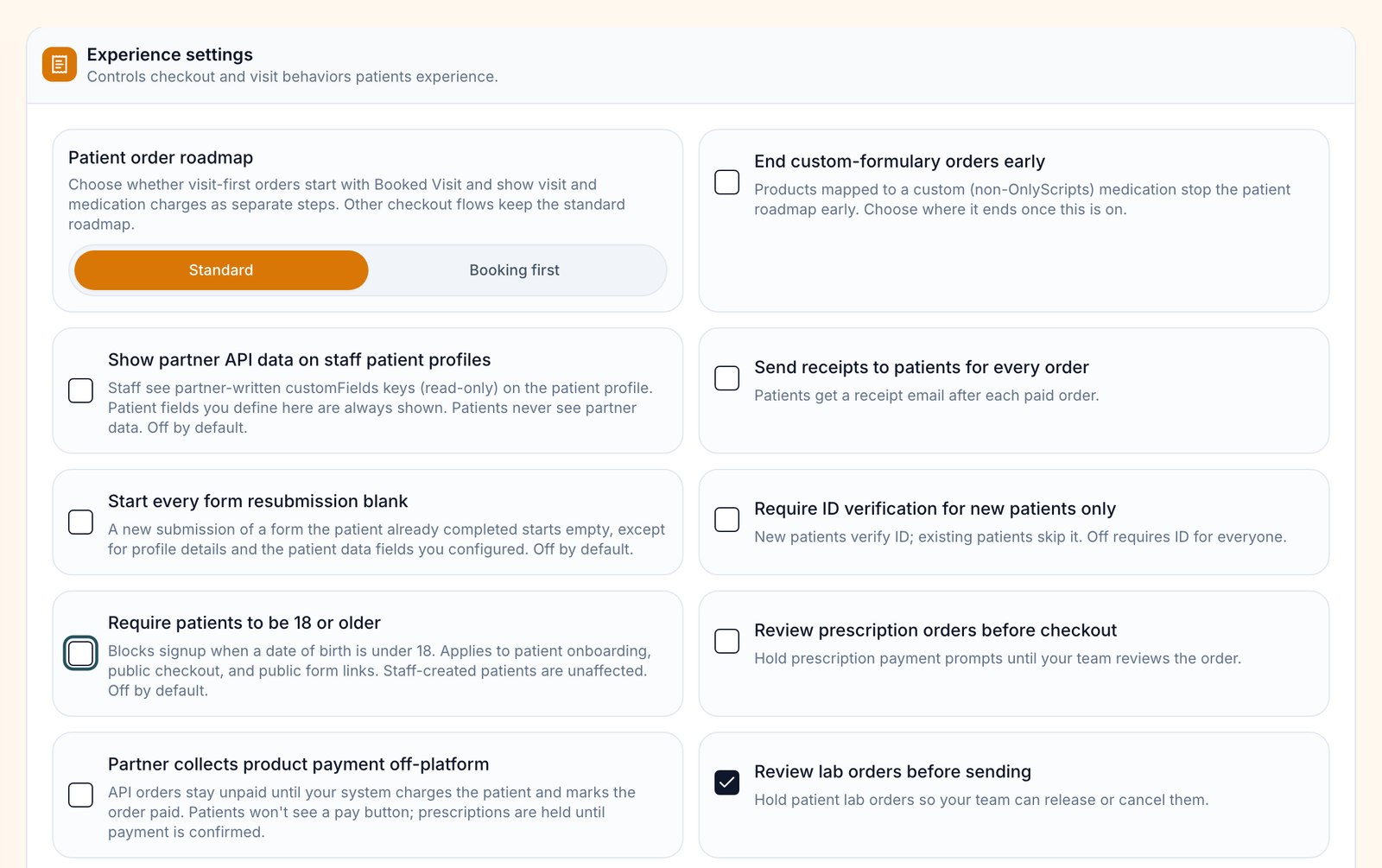
Scroll to Experience settings.
Turn it on or off
Click the option. It saves at once.
| Option | Turn it on when |
|---|---|
| Patient order roadmap | Booking first: visit-first orders start with the booked visit. |
| End custom-formulary orders early | Products mapped to your own (non-OnlyScripts) medication should end the roadmap early. |
| Show partner API data on staff patient profiles | Staff need the fields your website sends by API. |
| Send receipts to patients for every order | Patients should get a receipt email. |
| Start every form resubmission blank | A repeated form should start empty. |
| Require ID verification for new patients only | Existing patients should skip the ID step. |
| Require patients to be 18 or older | Signup under 18 should be blocked. |
| Review prescription orders before checkout | Your team reviews before the patient is asked to pay. |
| Partner collects product payment off-platform | Your own system charges API orders. |
| Review lab orders before sending | Your team releases lab orders from Orders. |
| Show visit purchases in the patient Orders tab | Patients should pay visits under Orders too. |
| Ask patients if they want a video call | Async buyers should be offered a live video call. |
| Redirect patients when they leave a visit | Patients leaving a video visit should land on your URL. |
You'll know it worked when the toast reads Patient experience updated.
Who can do this: Client Admin. Staff coupon and marketing access moved to Settings — Staff permissions.
Control whether and how patients message you
Use this when patients can't find Messages, or to change what their texts show.
Choose who can message
In Patient messaging, turn on Allow patients to send messages and Client care team. Turn on Allow messaging without an order so patients can message before they buy.
Choose what patients see
Patient text notifications is Full text or Secure (texts only say a message is waiting). SMS display name is the sender name on lock screens.
You'll know it worked when a test patient sees Messages in their menu.
Who can do this: Client Admin. AI-assisted staff drafts also needs your provider network's approval.
Edit the patient menu and dashboard
Use this to show, hide, rename or reorder patient pages, or add your own links.
Show or hide pages
In Patient dashboard → Sidebar menu, tick or untick each page. Dashboard, Forms and Wallet can't be hidden. Use the arrows to reorder.
Rename a page
Click the pencil (for example Edit Visits), change Menu label, Icon or Page description, then Save.
Add a link
Click Add link, enter a Label, choose Website URL or Client form, then Save link. Add section groups links.
Choose dashboard blocks
Click Dashboard sections to turn home-screen blocks on or off, or Add custom section.
You'll know it worked when the PREVIEW shows the change; hidden pages read HIDDEN.
Who can do this: Client Admin.
Turn individual patient emails and texts on or off
Use this to stop one kind of patient email, such as order status updates.
Find the row
Scroll to Notifications. Email only rows have no text version.
Untick it
Untick Email or SMS on that row.
You'll know it worked when that kind of message stops appearing in Settings — Logs.
Who can do this: Client Admin. To stop every patient email and text, use Settings — Notifications.
Turn off Account creation email before a bulk import if patients shouldn't be invited yet. Never turn off Visit access delivery: patients lose the link to book or join their visit.
Collect your own patient fields
Use this to store something about every patient, such as a referral source.
Start a field
In Patient custom fields, click New field.
Describe it
Enter a Label and choose a Type and Group.
Choose where it appears
Tick places such as Patient profile or Patients table, then click Create field.
You'll know it worked when the field is listed as Active and you can add it to a form in Forms.
Who can do this: Client Admin.
What's on this page
| Control | What it does |
|---|---|
| No Save button | Switches and choices save when you click them. Dialogs have their own save. |
| Portal layout | Navigation style, border style and width of the patient portal. |
What can go wrong
| What you see | Why | Fix |
|---|---|---|
| Messages is ticked but patients don't see it | Patients without an order can't message | Turn on Allow messaging without an order. |
| Patients get a pop-up asking them to choose a consultation after buying | Ask patients if they want a video call is on | Turn it off. |
| Patients got awaiting payment emails for orders you already collected | Order status updates is on | Untick it. This stops every order status email. |
| Patient texts don't show your brand name | SMS display name is empty | Enter a name that doesn't state a treatment. |
Questions people ask
Can we add a sidebar link straight to a specific form?
Yes: Add link → Client form. The patient opens it already signed in.
Are selfies and IDs mandatory for patients?
For new patients, yes. Require ID verification for new patients only lets existing patients skip it.
Can the Book a Visit button in the patient portal go to our own site?
No; it can't be redirected or hidden. To book on your site, use the Client API (Settings → Developers).
Related
Was this helpful?