
Knowledge base
Find and open shared documents, add links, files and folders, show entries to patients, mark required reading, and rename, move or delete entries.
Knowledge base is your organisation's shared library of training documents, policies and links, plus the entries you choose to show patients. Left menu → Knowledge base. Client Admin adds and manages entries; Client Staff can search, open, download and export.
What you can do here
- Find and open a document
- Add a link, files or a folder
- Show an entry to patients or mark it required
- Rename, move or delete an entry
Find and open a document
Use this when you need a policy, script or training file your team shares.
Search or filter
Type in Search knowledge base, or narrow with All Types (folders, links, PDFs and so on), All Requirements (Required or Optional) and All Labels. List and Grid switch the view.
Open it
Double-click the entry or folder, or right-click it → Open (Download for files). Go back returns to the folder above.
You'll know it worked when the folder opens (its path shows above the list, for example Lumen Wellness / Staff Training) or the file opens in a viewer.
Who can do this: Client Admin and Client Staff. Export CSV downloads the list of entries.
Add a link, files or a folder
Use this to share a new policy, a training video link or a folder for a topic. Open the folder first if the entry belongs inside one.
Add a link
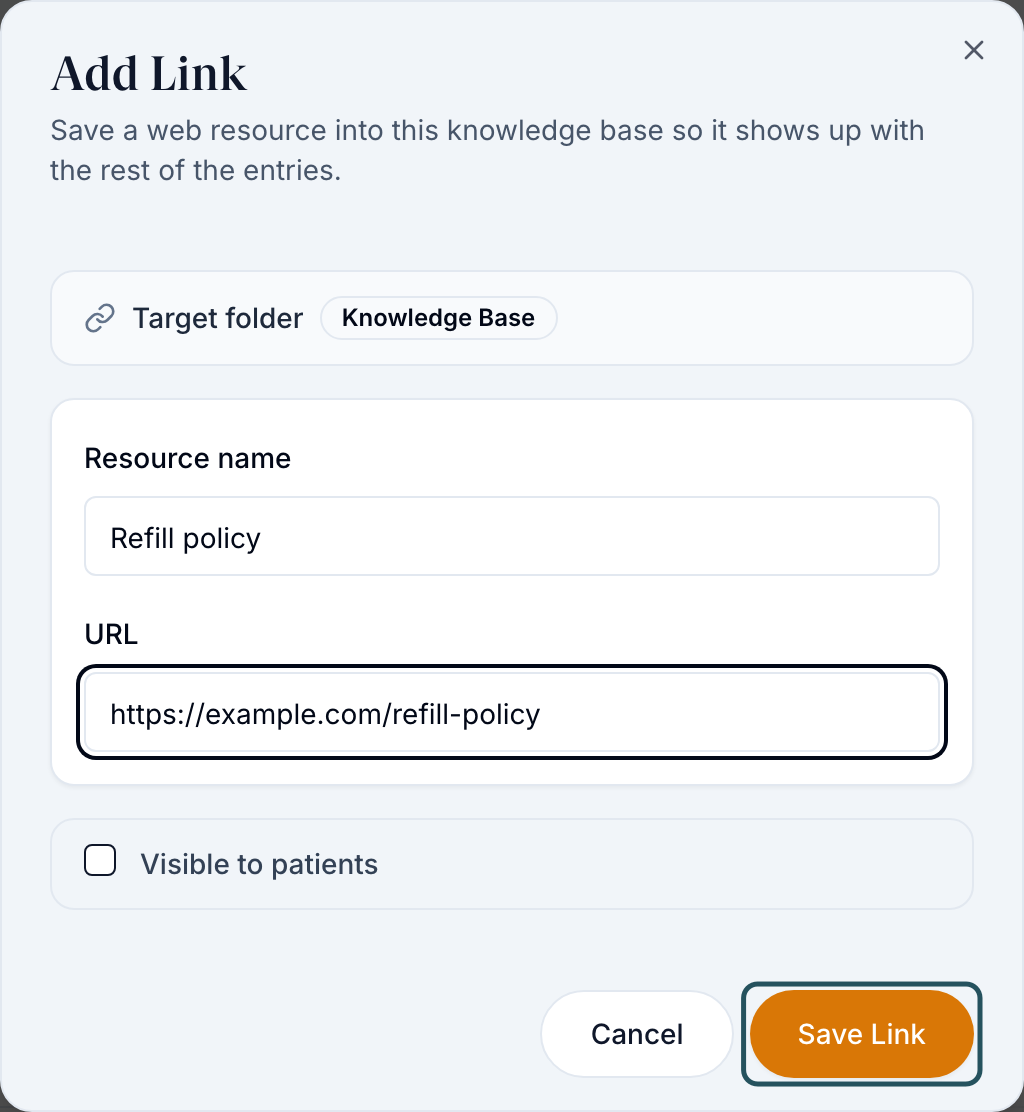
Click Add Link, fill in Resource name and URL, then click Save Link.
Or upload files
Click Upload Files and pick the files. In the Upload Files window add an optional description and Labels (comma separated), then click Upload. Keep the browser tab open until it finishes.
Or create a folder
Click Create Folder, type the Folder name and click Save.
You'll know it worked when the new entry shows in the list with today's date.
Who can do this: Client Admin.
Show an entry to patients or mark it required
Everything is staff-only until you publish it.
Right-click the entry
In the list or grid.
Choose
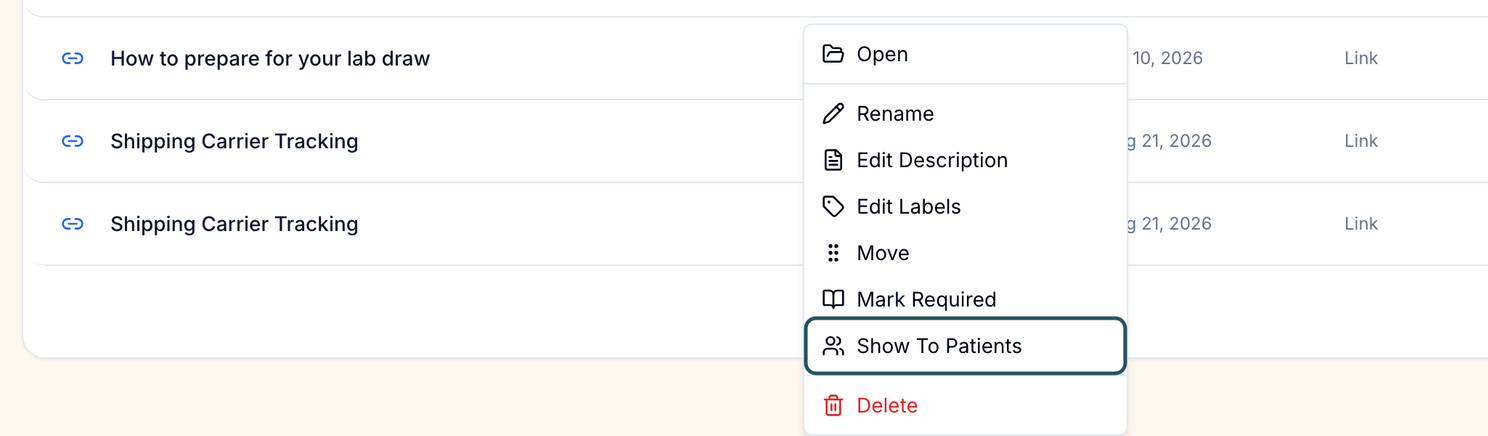
Show To Patients publishes it to your patients' portal; Make Staff Only takes it back. Mark Required flags it as required reading for your team (Remove Required undoes it). The Add Link and Upload Files windows have the same Visible to patients tick box.
You'll know it worked when the entry shows the Patient tag, or appears under All Requirements → Required.
Who can do this: Client Admin.
Rename, move or delete an entry
Right-click the entry
Choose Rename, Edit Description, Edit Labels or Move (then pick the folder). You can also drag an entry onto a folder.
Delete
Right-click → Delete, type DELETE and click Delete entry. It can't be undone.
You'll know it worked when the list shows the new name or location, or the entry is gone.
Who can do this: Client Admin.
What can go wrong
| What you see | Why | Fix |
|---|---|---|
| No Upload Files, Add Link or Create Folder | You are Client Staff | Ask a Client Admin to add it. |
| Upload fails with a permission error as a Client Admin | Known problem | Raise a ticket in Support with the file name. |
| Patients can't see a file | It is still staff-only | Right-click → Show To Patients. |
| An upload stopped part-way | The browser tab closed before it finished | Upload the missing files again. |
| No All Labels filter | No entry has a label yet | Add labels with Edit Labels. |
Questions people ask
Can patients see what I upload?
Only entries you mark Show To Patients (or upload with Visible to patients ticked). Everything else is staff-only.
Does Mark Required make staff read it?
No. For your team it is a flag and a filter; nobody is locked out or reminded.
Should I store patient documents here?
No. Put a patient's files on their profile's Documents tab.
Can we give patients PDFs to read, like dosing instructions?
Yes. Upload the PDF with Visible to patients ticked, or use Show To Patients on an existing one.
Related
Was this helpful?