
Settings — Branding
Logo, colours and contact details, the checkout, sign-in, email and form themes, a white-label portal domain, a custom email sender, and your branded sign-in link.
Settings — Branding sets how your business looks to patients: logo, colours, the checkout, sign-in, email and form pages, and the web address and email sender they see. Left menu → Settings → Branding. Client Admin only.
What you can do here
- Add your logo, colours and contact details
- Change how checkout, sign-in, emails and forms look
- Put the patient portal on your own domain
- Send patient emails from your own domain
- Share your branded sign-in link
Add your logo, colours and contact details
Use this at setup, or when your logo or colours change.
Upload the icon and logo
In Business brand, click Change Icon (square) and Change Logo (wide, 3:1). Remove light background drops a white plate behind the logo.
Fill in the contact fields
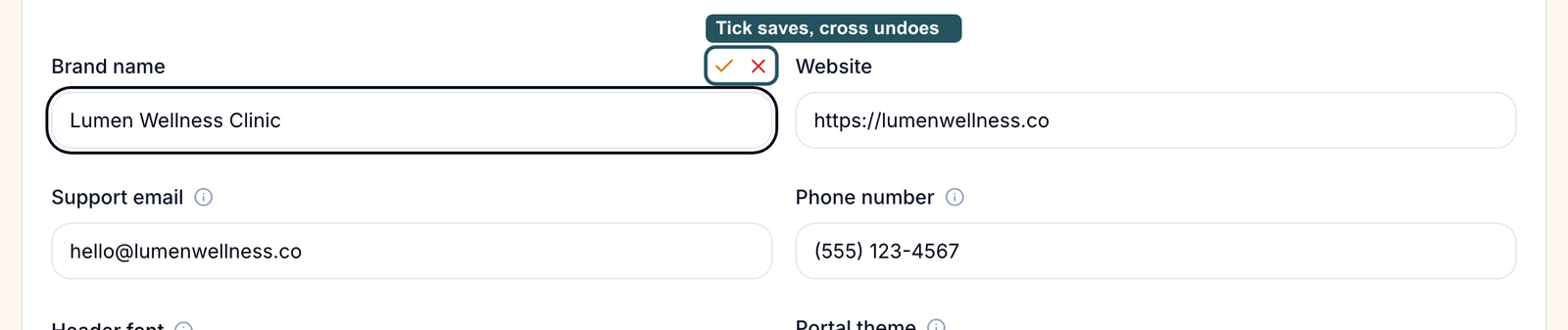
Type in Brand name, Website, Support email (the reply-to on branded emails) or Phone number. A tick and a cross appear beside the label: click the tick to save, the cross to undo.
Pick the font and theme
Choose a Header font and a Portal theme (Light or Dark). Both apply at once.
Set your colours
Type a hex code in Primary Color (buttons and links). Colours save a moment after you stop typing. Leave the others on Auto-generated unless you have exact values.
Brand your video visits (optional)
Tick Enable provider video logo background to show your logo behind providers on video visits.
You'll know it worked when the toast reads Branding updated and the tick disappears. Colours save without a toast.
Who can do this: Client Admin.
Buttons use white text on your Primary Color. A white or very pale primary makes sign-in buttons in emails invisible. Pick a colour dark enough to read white text on.
Change how checkout, sign-in, emails and forms look
Use this to change the words, colours and logo on your checkout page, sign-in page, patient emails and public forms.
Pick a layout
On Storefront theme, Login theme, Email theme or Form theme, clicking a different layout switches to it straight away.
Open the editor
Click the selected layout (it reads Click to edit). The editor opens with an EXACT PREVIEW on the right; switch Desktop and Mobile.
Change the copy and colours
Checkout and sign-in have Headline, Subhead and Trust note. Forms add Logo link; emails add Send test email.
Save
Click Save changes. To leave without saving, press Esc and choose Discard changes.
You'll know it worked when the preview matches and your next test email or checkout page shows the change.
Who can do this: Client Admin.
Put the patient portal on your own domain
Use this when you want patients to sign in at an address like portal.yourclinic.com.
Save the subdomain
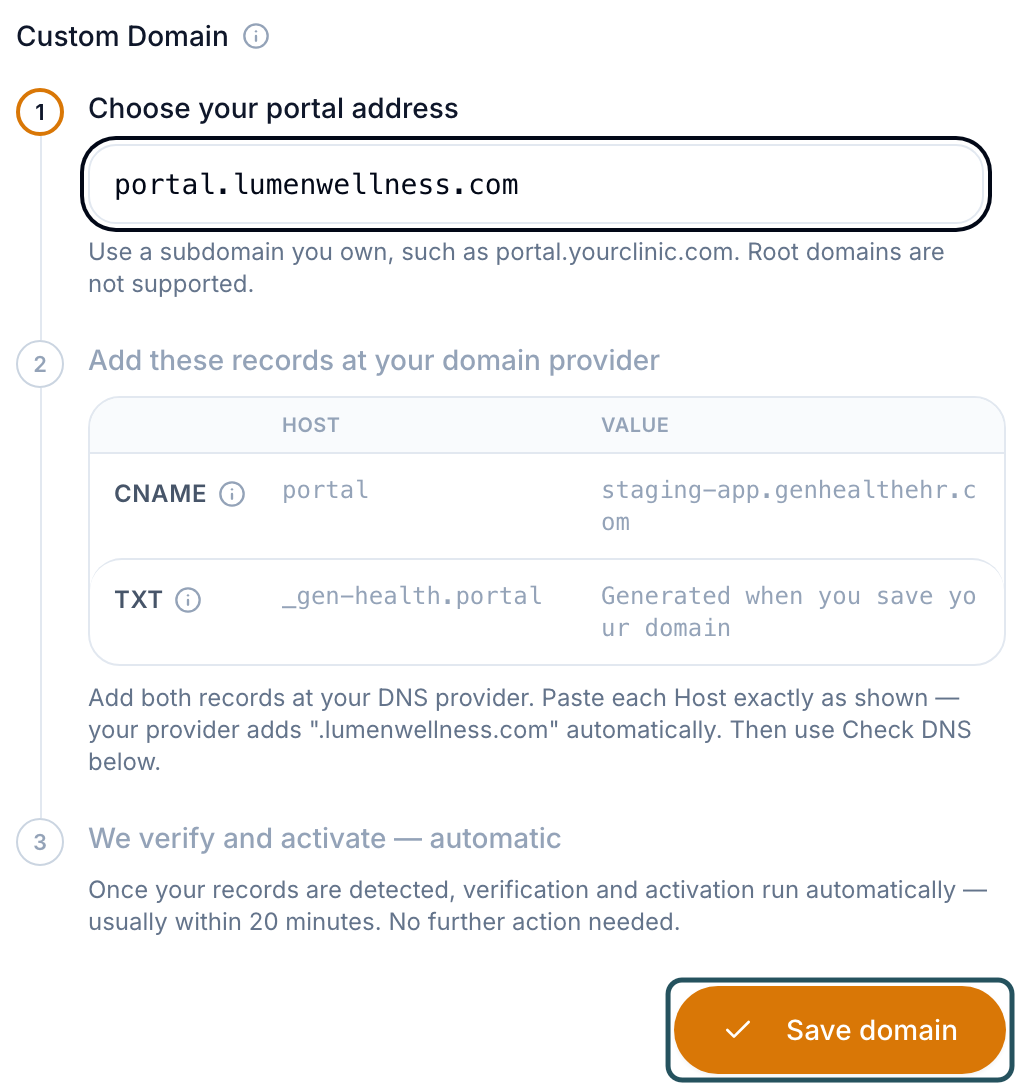
In Domain management → Custom Domain, type a subdomain you own and click Save domain. Root domains such as yourclinic.com are not supported.
Add the records
Where your DNS is hosted (for example Cloudflare, not always your registrar), add the CNAME, TXT and certificate records. Paste each HOST exactly as shown, such as portal. On Cloudflare, turn the proxy off.
Check and activate
Click Check DNS. Once each row reads Record detected, activation usually runs within 20 minutes; click Activate if it appears.
You'll know it worked when the badge reads Active: Your branded portal address is live. Sign-in emails and links use it automatically.
Who can do this: Client Admin, plus whoever manages your DNS. Remove domain takes it off.
Send patient emails from your own domain
Use this so patient emails come from your address instead of a gen-health.app one.
Choose the sender address
Under Email Domain, set From mailbox and Email domain, then click Save sender address. The line below shows the address patients will see.
Add the two records
Add the TXT (DKIM signature key) and CNAME (Return-path routing) records at your DNS host, then click Check DNS.
You'll know it worked when both records verify; patient emails then switch to your address on their own.
Who can do this: Client Admin.
Share your branded sign-in link
Use this to give patients a sign-in link that shows your branding, with or without a custom domain.
Set the URL slug
At the bottom of Domain management, type a short name in URL slug (lowercase letters, numbers and dashes), then click the tick.
Copy the link
Copy the whole Branded sign-in link line under the field, including ?brand=.
You'll know it worked when the toast reads Brand slug updated and the link opens your branded sign-in page.
Who can do this: Client Admin.
Selling online: point your website's Log in button here. In a clinic: text or print this link for patients checking in.
What can go wrong
| What you see | Why | Fix |
|---|---|---|
| DNS records are added but Check DNS still says Waiting for this record | The records were added at the registrar while DNS is hosted elsewhere, the HOST was pasted with the domain twice, or the Cloudflare proxy is on | Add them where your nameservers point, paste the host exactly as shown, set DNS only, then Check DNS again. |
| Patients see This site cannot provide a secure connection on your domain | The certificate hasn't been issued yet | Keep the certificate record, click Check DNS, then Activate. Still failing after an hour: raise a ticket in Support. |
| The sign-in button in invite or magic-link emails is invisible | White or very pale Primary Color | Choose a darker primary colour. |
| Your logo is tiny, pixelated or hard to see in emails | A small, square or transparent logo in a wide slot | Upload a larger 3:1 logo, or set Logo background color in the Email theme editor. |
| Could not enable virtual background | No logo uploaded | Upload a logo, then tick Enable provider video logo background again. |
Questions people ask
What link should new patients use so they sign up under our brand?
Your Branded sign-in link (URL slug), or your custom domain once it reads Active.
Can patient emails come from our own domain instead of the gen-health.app sender?
Yes. Set up Email Domain (see Send patient emails from your own domain). Until both records verify, emails keep the GEN Health sender.
Can we add an image to the sign-in screen? And why do Privacy Policy and Terms say GEN Health?
The Login theme editor takes a background image. The policy links on the sign-in page can't be changed.
We keep getting "Update DNS settings" emails though we added the records. Is it broken?
Click Check DNS. If every row reads Record detected or Certificate issued, you're fine; send the email to Support. If a row is still waiting, that record is the one to fix.
Related
Was this helpful?