
Settings — Orders
Add up to 20 of your own order labels, such as Ready for pickup, use them on Orders, and find where the other order settings live.
Settings — Orders is where you add your own order labels, up to 20, for fulfillment steps the built-in statuses don't cover, such as Ready for pickup. Left menu → Settings → Orders. Client Admin only.
What you can do here
Add a custom order status
Use this when your team needs a step of its own, such as Packed or Picked up in clinic.
Type the name
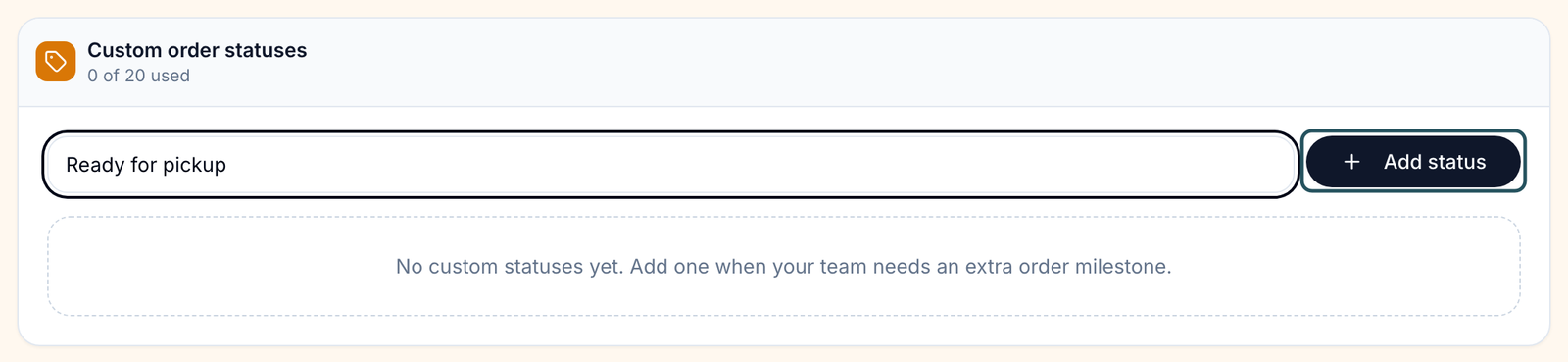
In Custom order statuses, type into the box that reads e.g. Ready for pickup. 40 characters at most.
Add it
Click Add status, or press Enter.
You'll know it worked when the toast reads Custom order status added, the row shows a Custom badge, and the count reads 1 of 20 used.
Who can do this: Client Admin.
Put the label on an order
Use this on Orders when an order reaches your custom step.
Pick the label
On Orders, click the order's status pill and choose your label under Custom.
Confirm
Change this order label? opens. Type confirm, then click Change label.
You'll know it worked when the order's pill shows your label and the All statuses filter lists it.
Who can do this: Client Admin and Client Staff.
A custom label changes the words only. It never marks an order paid, sends anything to a pharmacy or lab, or emails the patient.
In a clinic: labels such as Ready for pickup and Picked up track medication you hand over at the desk. Selling online: the pharmacy sets Shipped and Delivered for you.
Remove a label
Use this for a label your team no longer uses.
Delete it
Click the bin icon on its row. There is no confirmation.
You'll know it worked when the toast reads Custom order status removed. Orders that already carry it keep showing it, but nobody can choose it again.
Who can do this: Client Admin.
What's on this page
| Control | What it does |
|---|---|
| N of 20 used | How many labels you have; 20 is the limit. |
| Custom badge | Marks a label as yours, not built in. |
Other order settings live elsewhere: Review prescription orders before checkout and Review lab orders before sending are in Settings → Portal experience; default shipping is in Settings → Payments; staff refunds and invoices are in Settings → Staff permissions.
What can go wrong
| What you see | Why | Fix |
|---|---|---|
| “Shipped” is already a standard order status | Built-in names such as Shipped, Delivered or Processing can't be reused. | Pick another name, for example Packed locally. |
| That custom status already exists. | The same name, ignoring case, is saved. | Use the existing one. |
| You can create up to 20 custom statuses. | You are at the limit. | Remove one you no longer use. |
| You can't pick Sent to Pharmacy, Approved or Processing on an order | Those are set by the provider and pharmacy only. | Add your own label if you route outside GEN Health. |
| Orders go to the pharmacy without your team's review | The review settings are off, or on the wrong page. | Check Review prescription orders before checkout in Portal experience; if it is on and orders still skip review, contact Support. |
Questions people ask
Can Client Staff add labels?
No. Staff can put a label on an order, but only a Client Admin can add or remove labels.
Can I hide the built-in statuses?
No. Custom labels are added alongside them.
Related
Was this helpful?