
Settings — Artificial intelligence
Choose the AI models and edit the prompts behind AI-drafted SOAP notes and Ask AI, test a change on sample data, and go back to the default.

Artificial intelligence sets the models and prompts behind the SOAP note providers draft with Generate Notes, and behind the Ask AI chart assistant. Left menu → Settings → Artificial intelligence. Provider Network Admin.
What you can do here
- Change the AI model
- Edit the instructions (prompts) for AI notes
- Test a change before providers see it
- Go back to the default, or turn AI drafting off
Change the AI model
Use this when notes are too slow, too costly or not detailed enough.
Open the model card
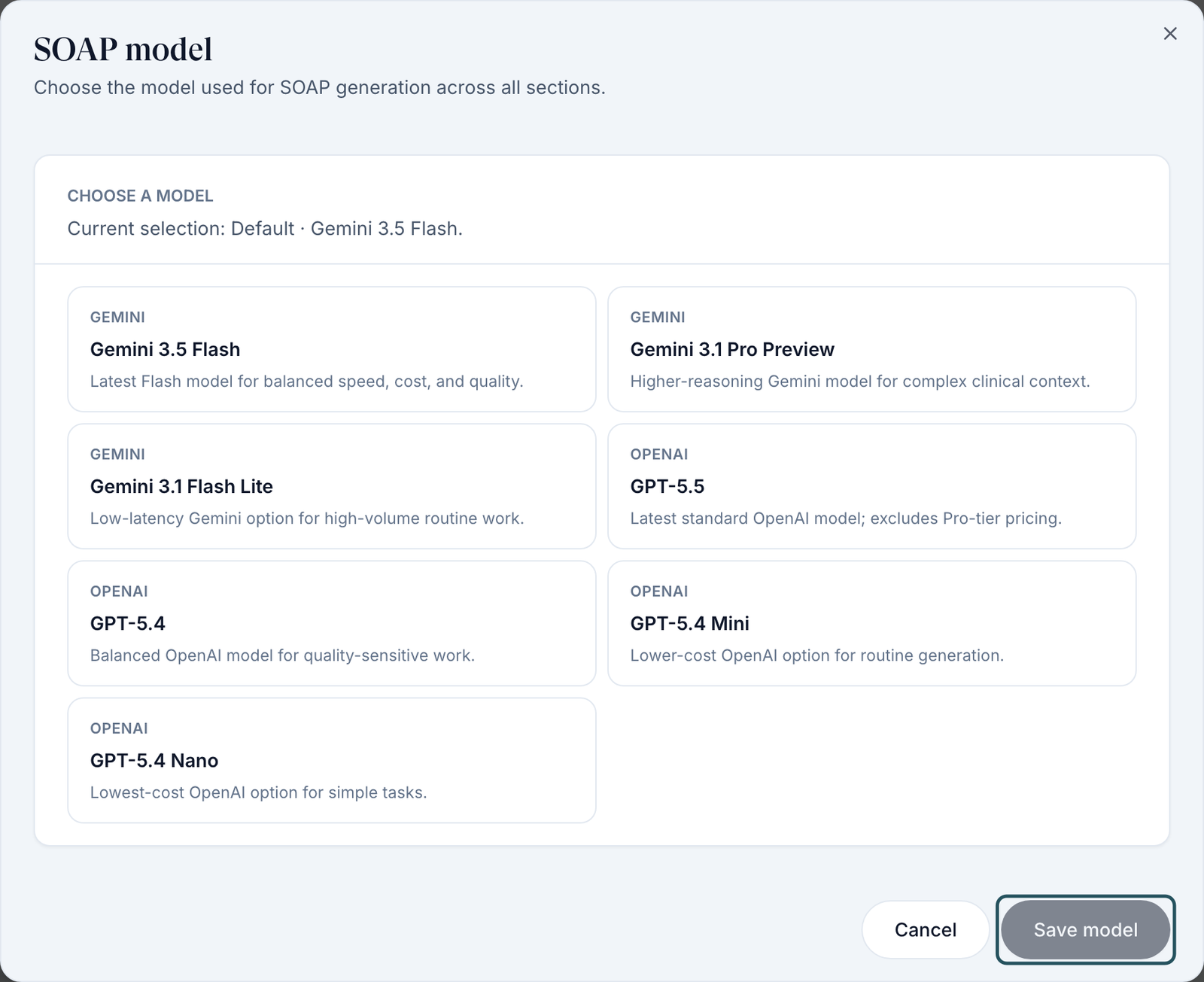
Click SOAP model (drafts the four SOAP sections) or Visit assistant (answers in Ask AI).
Pick a model
Under Choose a model, click one of the Gemini or OpenAI models. Each shows a one-line description.
Save
Click Save model. Cancel keeps the current one.
You'll know it worked when the toast reads AI configuration updated and the card reads Current: with your model.
Who can do this: Provider Network Admin. It applies to the next note generated.
Edit the instructions (prompts) for AI notes
Use this to change the tone, structure or length of AI notes, or what Ask AI focuses on.
Open the prompt
Click a prompt card: SOAP system prompt and SOAP user prompt apply to every section; Subjective, Objective, Assessment and Plan section prompt apply to one; Visit assistant prompt is for Ask AI.
Read, then write
A blank system prompt shows the default in use. Type your instructions in Custom Prompt.
Save
Click Save prompt.
You'll know it worked when the card's badge reads Custom. It applies to the next note generated.
Who can do this: Provider Network Admin. Put house style in the SOAP system or user prompt; keep section prompts to what's specific to that section.
Test a change before providers see it
Use this after any model or prompt change, before a clinical shift.
Run the test
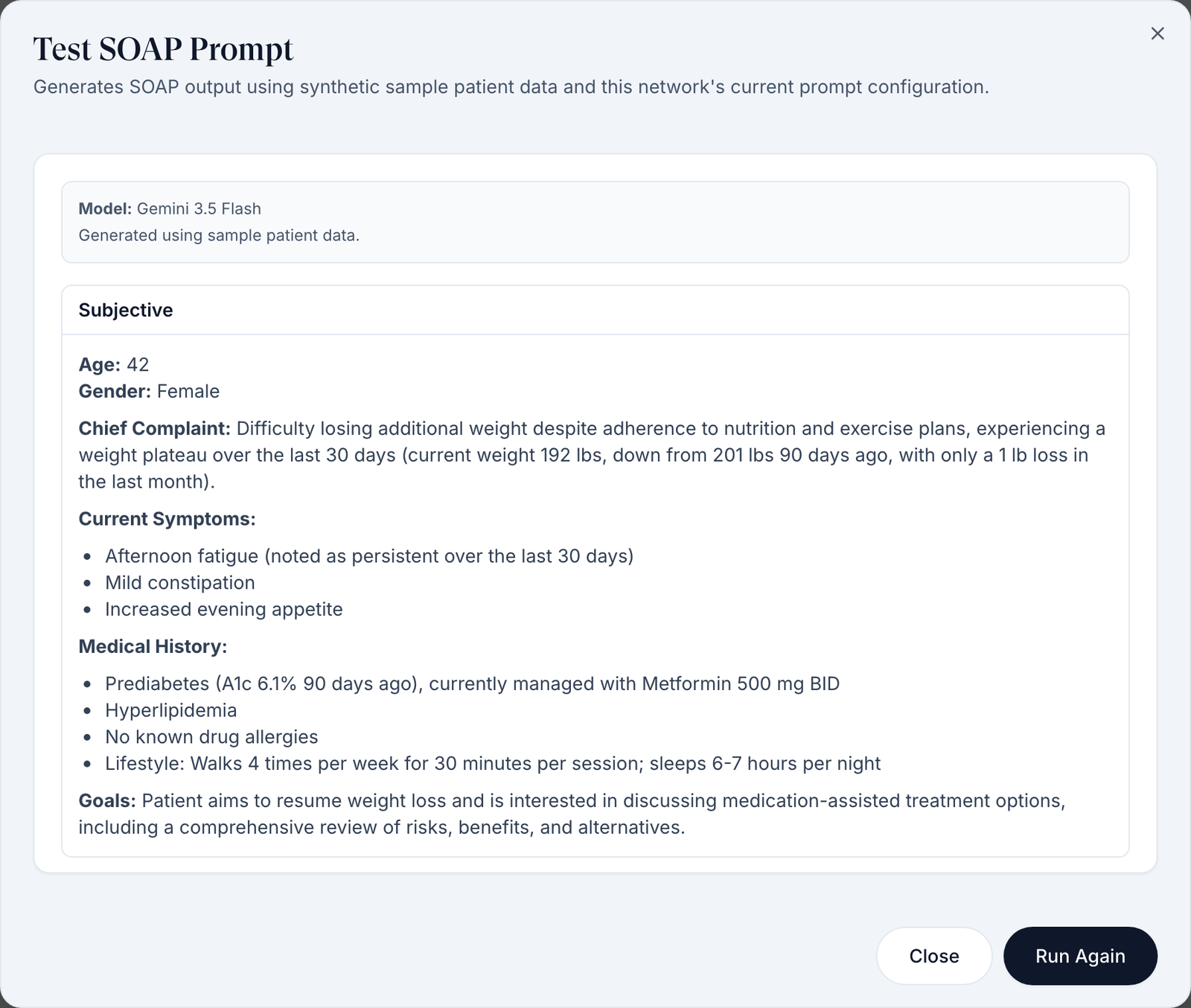
Click Test (top of the card). Test SOAP Prompt drafts a note from made-up sample patient data using your current settings. Nothing is saved to a chart.
Read and repeat
Check Subjective, Objective, Assessment and Plan. Change one prompt, then click Run Again.
You'll know it worked when the dialog shows Model: and Generated using sample patient data. above the four sections.
Who can do this: Provider Network Admin.
Go back to the default, or turn AI drafting off
Use this when providers say notes changed for the worse, or your network doesn't want AI drafts.
Restore the default
Open a card with the Custom badge → Use Default → Save prompt.
Remove the SOAP step
There's no AI off switch here. To hide SOAP drafting, untick Evaluation (SOAP) in Settings — Operations.
You'll know it worked when the badge reads Default or Default active.
Who can do this: Provider Network Admin.
What's on this page
| Control | What it does |
|---|---|
| SOAP model, Visit assistant | The model for SOAP drafts, and for Ask AI |
| SOAP system prompt, SOAP user prompt | Instructions for all four SOAP sections |
| Section prompts | Instructions for one section only |
| Visit assistant prompt | Instructions for Ask AI, which sees only the open patient's chart |
| Info icon | About AI Prompt Controls: how the layers stack |
AI never writes to a chart on its own. A provider clicks Generate Notes in the SOAP step, edits the draft, and confirms they reviewed AI output before recording a decision.
Statuses you'll see here
| Status | What it means | Who acts next | What you do |
|---|---|---|---|
| Custom | Your network's own prompt is in use | You | Read it before assuming the default runs |
| Default active | A system prompt is blank, so GEN Health's default runs | Nobody | Nothing; blank doesn't mean off |
| Default | A user or section prompt is blank | Nobody | Nothing |
| Unsaved | A model change wasn't saved | You | Reopen and click Save model |
What can go wrong
| What you see | Why | Fix |
|---|---|---|
| A provider clicks Generate Notes and nothing fills, or a section stays incomplete | That generation failed | Click it again, or Regenerate section. If it keeps failing, ticket GEN Health in Support with the visit. |
| A provider's edits in a section disappeared | Regenerate section replaces that section's text | Copy edits out before regenerating. |
| The draft misses information added after it was generated | The draft uses what was on the chart at that moment | Generate or regenerate after updating the chart. |
| Providers say notes changed overnight | A prompt or model was saved; it applies at once | Open cards marked Custom; use Use Default to revert. |
| Unable to run prompt test | The test generation failed | Click Run Again; if it persists, revert your last prompt. |
| Unable to save AI configuration. Please try again. | The save didn't reach the server | Reopen the card and save again. |
Questions people ask
How do we edit the AI notes (SOAP) as a Provider Network Admin?
You change how notes are drafted here: model, prompts and section instructions. The note itself is edited by the provider in the chart.
What can Ask AI see?
Only the open patient's chart: intake, forms, orders, earlier visits and labs. It can't see other patients or the web.
Can we use our own AI model?
No. Only the listed Gemini and OpenAI models are offered.
Related
Was this helpful?