
Settings — Network overview
Network name, timezone, support email, clinic address and operating hours: set weekly hours, close for a holiday, and find out why patients see no appointment times.
Network overview holds your network's name, timezone, support email, clinic address and operating hours: the hours every provider's availability has to fit inside. Left menu → Settings → Network overview. Provider Network Admin.
What you can do here
- Set your timezone and weekly hours
- Close or change hours on specific dates
- Update your network details and address
- Find out why patients see no appointment times
Set your timezone and weekly hours
Do this before your providers set their availability; until you do, they can't.
Pick the timezone
In Business Details, open Timezone, choose your zone, then click the tick beside the field. Every hour on this page uses it.
Switch your days on
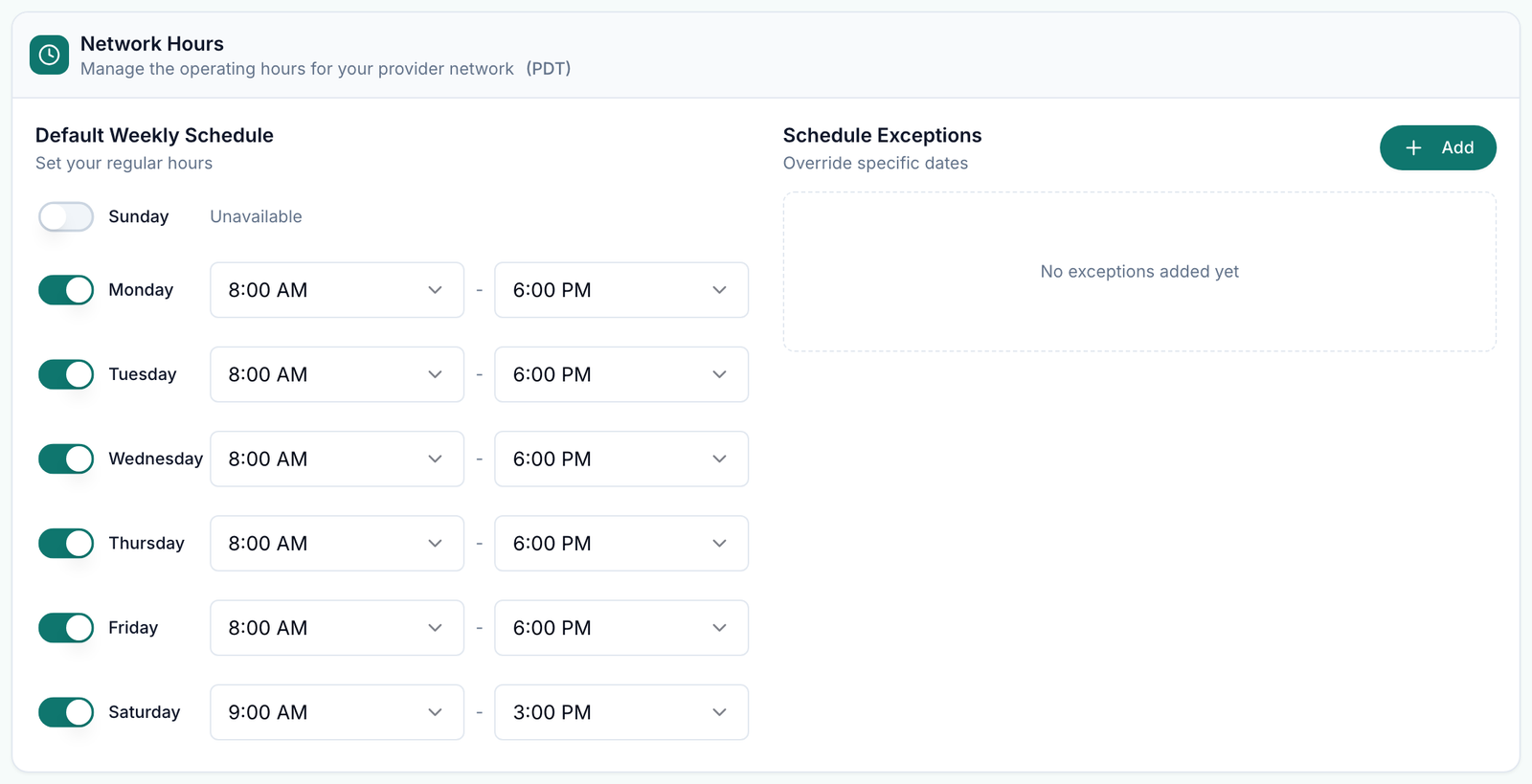
In Network Hours → Default Weekly Schedule, turn on each day you operate. A day that's off reads Unavailable.
Set the times
Pick each day's start and end time. Days and times save as you change them; there's no Save button.
You'll know it worked when the toast reads Timezone updated and the Network Hours header shows your zone, for example (PDT).
Who can do this: Provider Network Admin. Providers then add their own hours inside yours; patients can only book times that fall inside both.
Close or change hours on specific dates
Use this for holidays, closures or a short day.
Open Add
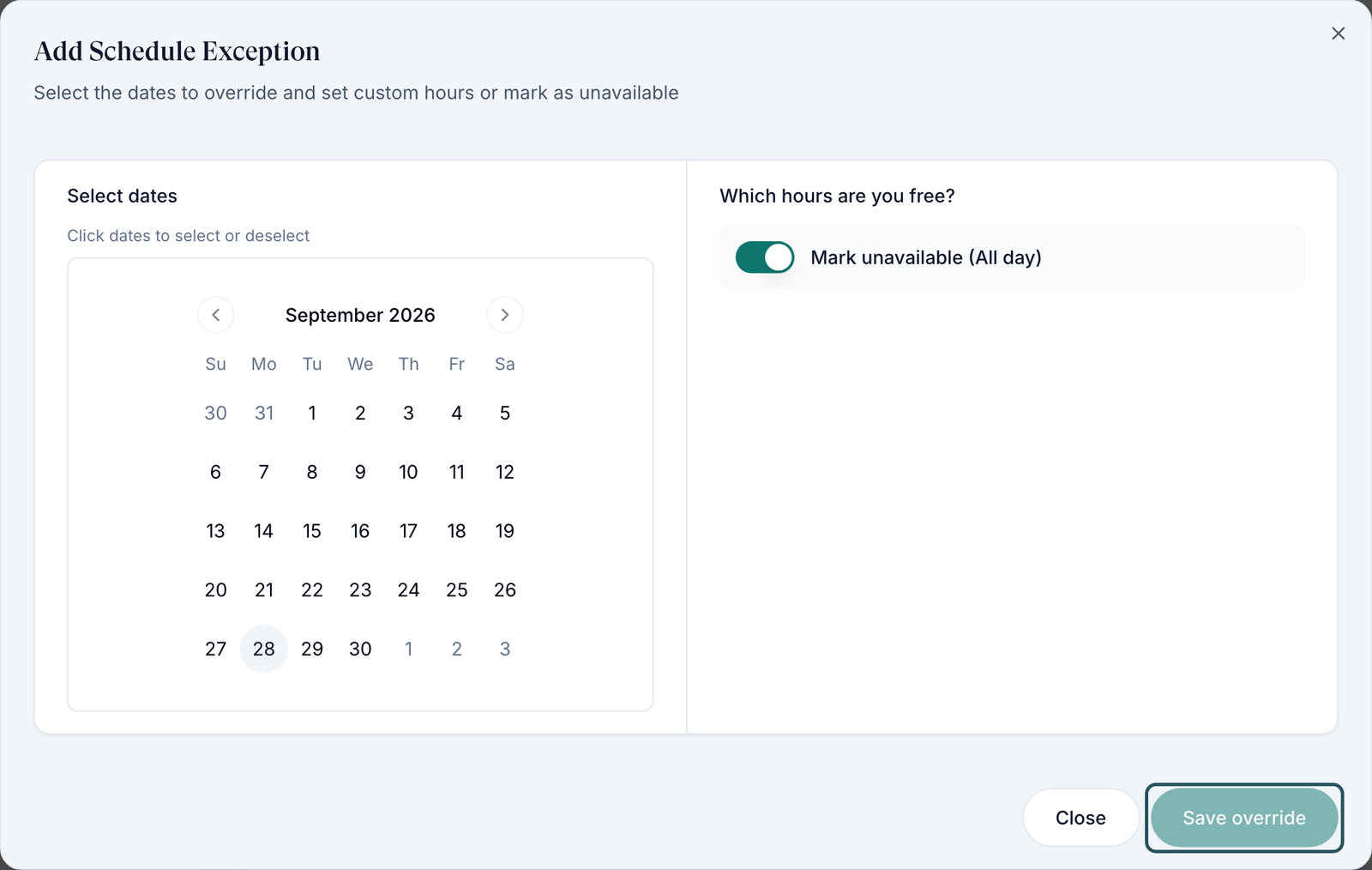
Under Schedule Exceptions, click Add.
Pick the dates
Click each date on the calendar; each becomes a chip.
Close or set hours
Turn on Mark unavailable (All day), or set a Time range under Which hours are you free?
Save
Click Save override.
You'll know it worked when the toast reads 1 exception added and the date is listed under Schedule Exceptions. Remove it with the X on its row.
Who can do this: Provider Network Admin. Exceptions override the weekly hours for those dates only.
Update your network details and address
Use this when your name, support inbox or clinic address changes.
Edit a detail
Change Network Name, Display Name or Support Email. A tick and an X appear beside the label: the tick saves, the X discards.
Edit the address
Change the Business address fields, then click the tick in that card's header.
You'll know it worked when a toast reads, for example, Support email updated or Business address updated.
Who can do this: Provider Network Admin. Support Email is the reply-to on branded emails; the address registers your providers with OnlyScripts.
Find out why patients see no appointment times
Use this when a client says "it says no provider available" or no times show.
Check the hours
Here: the day is on, the hours are wide enough, and Timezone is right.
Check exceptions
A date under Schedule Exceptions may be closed.
Check booking notice
Settings → Operations → Minimum advance booking time hides times that are too soon; 24 means nothing before tomorrow.
Check the provider
Providers → row menu → Manage Schedule: they need hours on that day, a verified licence in the patient's state, and assignment to that client.
You'll know it worked when the patient sees times again.
Who can do this: Provider Network Admin.
What can go wrong
| What you see | Why | Fix |
|---|---|---|
| Providers see Your Provider Network Admin hasn't set a timezone or configured operating hours yet. | No timezone, or no day switched on | Set Timezone and turn on at least one day. |
| You typed a new name and nothing saved | Business Details saves per field | Click the tick beside the field. |
| No timezone configured for this network. Go to Network Settings and set a timezone first. | Exceptions need a timezone | Set Timezone first, then add the exception. |
| The date chip under the calendar shows the day before the one you clicked | A known display problem with the chip label in US time zones | Go by the highlighted calendar date; that is the one saved. Check the date in the Schedule Exceptions list after saving. |
| Every time looks an hour off | The wrong Timezone; changing it doesn't move your hours | Fix the zone, then recheck each day and exception. |
| A provider's pharmacy registration fails | The Business address is wrong or incomplete | Correct it here; if it still fails, ticket OnlyScripts from Support. |
| Patient replies go to one admin's inbox | Support Email was filled from your own address (Support Email auto-populated from your admin account.) | Change it to a shared inbox. |
Questions people ask
Are your clinicians available 24/7? Can a patient book tonight?
Only if tonight is inside your network hours and a provider has availability then. Add evening or weekend hours here, and have providers add matching availability.
Can each provider have different hours?
Yes. Providers set their own hours inside yours in My schedule, or you set them from Providers → Manage Schedule.
What's the difference between Network Name and Display Name?
Network Name is required. Display Name is an optional public-facing name; when it's empty, the network name is used.
Where do I change our logo or colours?
Settings → Branding.
Related
Was this helpful?