
My schedule
Publish the hours patients can book, change or reduce them, connect Google Calendar, choose your Preferred Protocols, and add a state licence or DEA.

My schedule opens your own profile, where you publish the hours patients can book for SYNC (video) visits and keep your calendar, protocols and licences current. Left menu → My schedule, near the bottom. Provider; Provider Network Admins edit a provider's hours from SYNC Visits.
What you can do here
- Add your hours
- Change or reduce hours
- Connect Google Calendar
- Choose the protocols you see
- Add a state licence or DEA
- Edit a provider's hours (admins)
Add your hours
Use this when patients need to book video visits with you. Async chart reviews don't use your hours.
Open Scheduling
Click My schedule. The profile opens on Scheduling → Manage availability.
Pick the dates
Click dates on the calendar, or use This Week (Weekdays), Next Week (Weekdays) or Copy Previous Week. Clear empties the selection.
Set the times
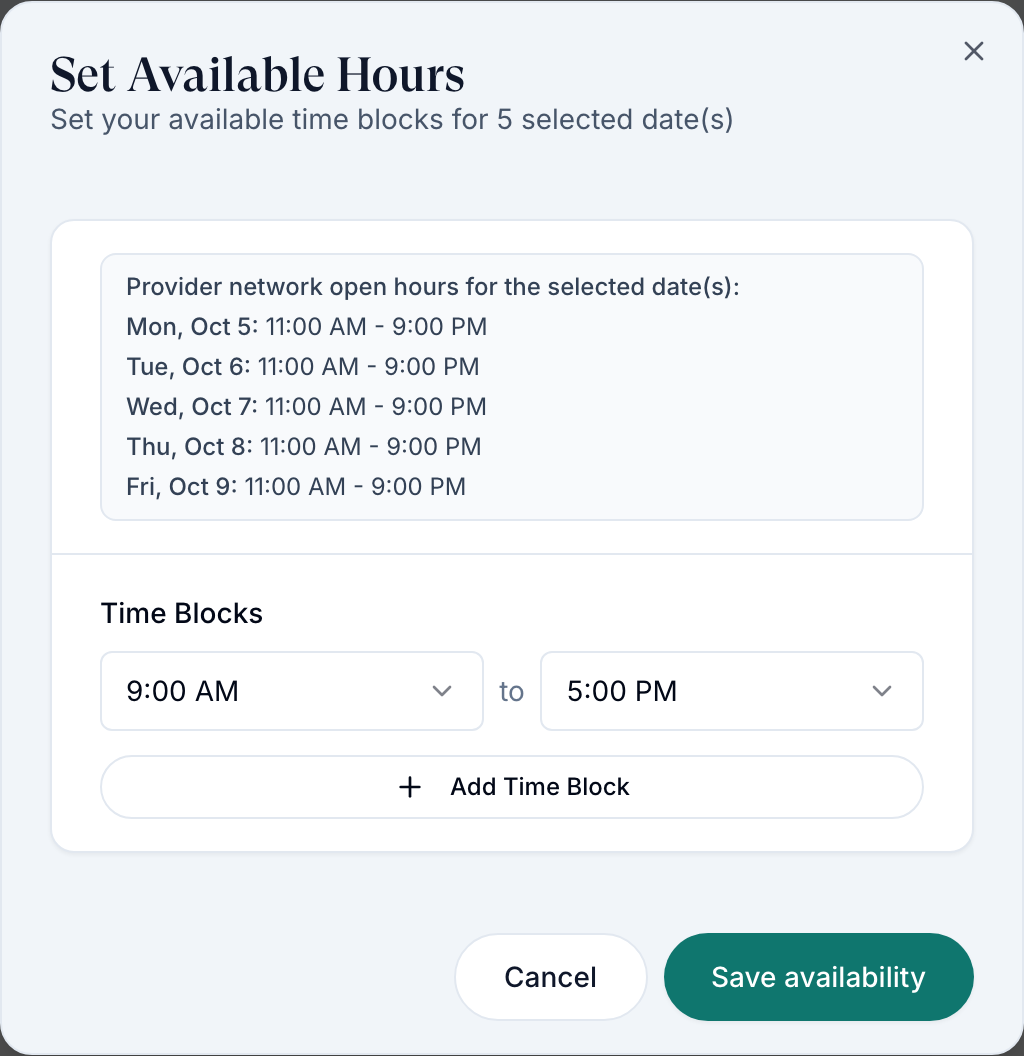
Click Set Hours for Selected Dates. Set each time block's start and end; Add Time Block adds another stretch. The dialog lists the network's open hours for each date.
Save
Click Save availability.
You'll know it worked when the toast reads Availability set for the number of dates, and they appear under Upcoming Availability.
Who can do this: Provider, on their own profile. Hours must sit inside the network's Provider network Operating Hours, shown on the same screen. You enter times in your time zone; the rule is checked in the network's.
Change or reduce hours
Use this when your hours for a date change.
Select the date
Click a date that already has hours, then Edit Hours for Selected Date.
Save the change
Adjust or remove time blocks and click Save changes.
You'll know it worked when the toast reads Availability updated. If you cut hours and your network requires approval, you'll see New hours were added. Reduced hours remain unchanged until admin approval.
Who can do this: Provider. Added hours apply at once; reductions go to your Provider Network Admin unless the network turned on Allow provider availability reductions.
Connect Google Calendar
Use this so booked visits land in your calendar and your busy time can't be booked.
Open Overview
In your profile, click Overview and find the Google Calendar card. The Dashboard's Set up calendar gets you to the same connection.
Connect
Click Connect Google Calendar and sign in with Google. Then choose the calendar under Write new visits to and the ones under Check busy time on.
You'll know it worked when the card shows Connected or Availability protected. Reconnect required means sign in again.
Who can do this: Provider, on their own profile.

Choose the protocols you see
Use this to hide protocols you don't treat from your async To Do list.
Open Capabilities
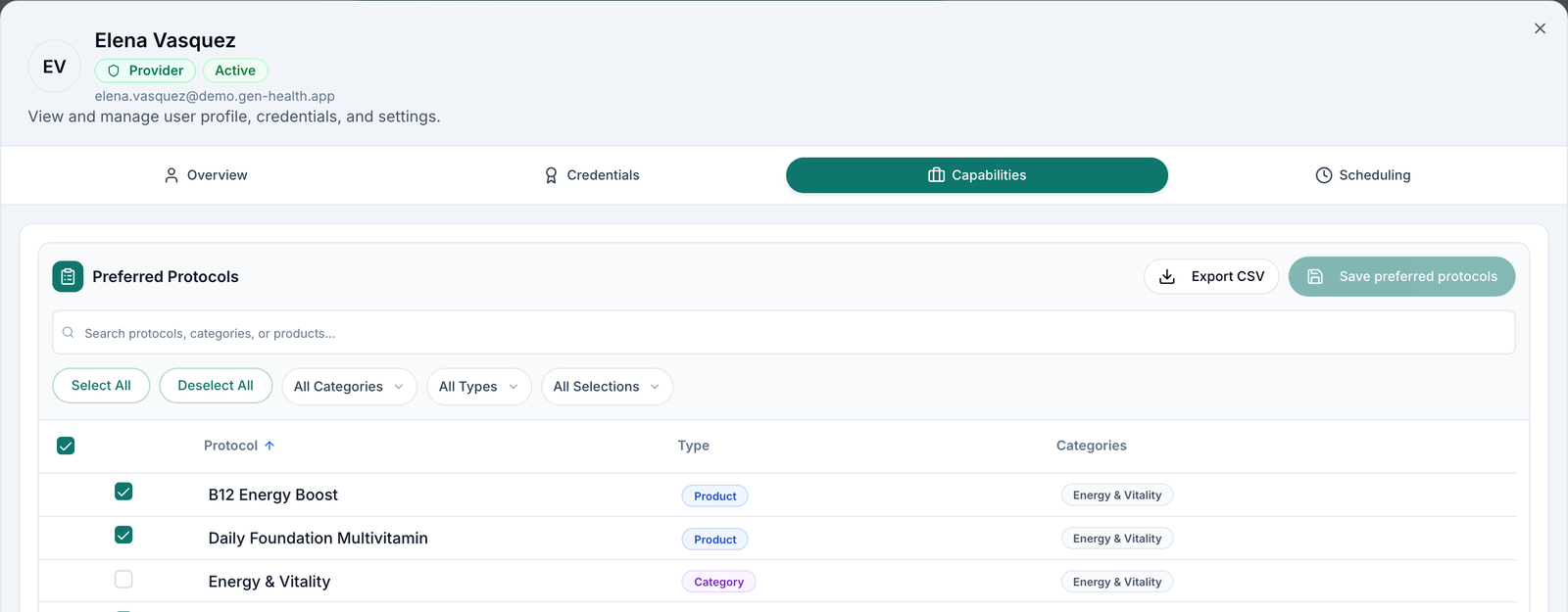
Click Capabilities. Preferred Protocols lists every protocol, all ticked unless you opted out. Filter with All Categories, All Types or All Selections.
Untick and save
Untick what you don't treat, then click Save preferred protocols.
You'll know it worked when the toast reads Preferred protocols updated. Opted-out protocols disappear from My protocols on ASYNC Visits; you can still claim them under All protocols.
Who can do this: Provider, and their Provider Network Admin.
Add a state licence or DEA
Use this when you get licensed in a new state, renew, or need to prescribe controlled medications.
Open Credentials
Click Credentials. Your licences are listed with Status and Expires.
Add it
Under Add New License, fill State, License Type, License Number and Expiration Date, upload the image or PDF, and click Add. For a DEA, type it in DEA Number and click Save DEA.
You'll know it worked when the toast reads License submitted for review. It shows Pending until your Provider Network Admin verifies it; only verified licences let you claim.
Who can do this: Provider. NPI changes go to your admin through Request change.
Edit a provider's hours (admins)
Use this to set hours for a provider, or to answer a reduction request.
Open their schedule
SYNC Visits → Active Providers → Schedule on the provider's row. The same editor opens for that provider.
Approve reductions
Reduction requests arrive in Notifications → Availability with Approve and Reject.
You'll know it worked when the provider's Upcoming Availability shows the new hours.
Who can do this: Provider Network Admin.
What can go wrong
| What you see | Why | Fix |
|---|---|---|
| must stay within network hours in your timezone (one line per date) | The default 9:00 AM to 5:00 PM falls outside the network's hours | Set times inside the open hours listed in the dialog. |
| Your reduction didn't apply | Your network approves reductions | Wait for your Provider Network Admin, or ask them to approve it. |
| We couldn't complete that action. Please try again. | The save didn't go through | Click save again. If it keeps failing, raise a ticket in Support. |
| Hours are saved but patients can't book | Booking notice, licence, client assignment or calendar busy time | Check Minimum advance booking time with your admin, your licence for the patient's state, and Google Calendar busy events. |
| A patient booked outside your hours | Known problem | Raise a ticket in Support with the visit time. |
Questions people ask
Can I set the same weekly hours for months ahead without clicking each date?
There's no repeating schedule. Use Copy Previous Week, or This Week (Weekdays) and Next Week (Weekdays), to fill a week at a time.
Why does changing my hours need approval? Can that step be removed?
Only reductions need approval, and it's a network choice. A Provider Network Admin can turn on Allow provider availability reductions in Settings → Operations.
Can I choose which Google calendars block my availability?
Yes. After connecting, pick them under Check busy time on on the Google Calendar card.
My licence was renewed. How do I update it?
Add it under Credentials → Add New License with the new expiration date. It shows Pending until your Provider Network Admin verifies it.
Why doesn't one of our providers show a schedule?
They haven't saved any hours, or they haven't finished onboarding. Ask them to add hours in My schedule, or set them yourself from Active Providers → Schedule.
Related
Was this helpful?