
Visits (SYNC)
Run booked video visits: Today's Schedule, Start Visit and Too Early, in-call controls, no-shows, rescheduling, claiming network visits, and how admins reassign.

SYNC Visits is where you run booked video visits (sync encounters): today's list, your week, and every visit assigned to you. Left menu → Visits with the SYNC pill. Provider; Provider Network Admins and Provider Delegates see the whole network and manage bookings.
What you can do here
- Start or rejoin a video visit
- Run the call and finish the visit
- Handle a patient who doesn't show
- Reschedule a visit
- Claim a network visit
- Reassign or book visits (admins)
Start or rejoin a video visit
Use this a few minutes before each appointment.
Find it in Today's Schedule
The left card lists today's visits with time and status. Your week is on the right; Week and Day switch the view.
Click Start Visit
It unlocks 30 minutes before the start and reads Too Early until then. A visit already running shows Continue Visit. Visit Details opens the chart without joining.
You'll know it worked when the charting window opens with the video.
Who can do this: the Provider the visit is assigned to. If you aren't licensed in the patient's state, you'll see You are not licensed in this patient's state. This visit cannot be conducted.
Run the call and finish the visit
Use this while you're with the patient.
Use Visit actions during the call
Reset Video reconnects the video. Send Reminder resends the join link by chat, email and text. Reschedule, Mark no-show and Cancel visit (needs a Cancellation Reason) are here too.
End the call, then finish the chart
End Call & Continue Charting → End Call disconnects; you keep charting. Record your decision and prescription in the Charting window. Finishing the chart completes the visit, not ending the call.
You'll know it worked when you see Visit completed successfully after the prescription step.
Who can do this: the Provider the visit is assigned to, while it's in progress.
Handle a patient who doesn't show
Use this when the start time has passed and the patient hasn't joined.
Nudge them first
In the call, click Send Reminder and confirm. The join link goes to the patient by chat, and by email and text where available.
Mark no-show
Click Mark no-show (in the call or on the Today's Schedule row), add an optional internal note, then Mark no-show.
You'll know it worked when the toast reads Visit marked no-show. The patient can rebook the same visit without another charge.
Who can do this: the assigned Provider and Provider Network Admins, once the start time has passed.
If you don't join, the visit becomes Provider No-Show after your network's grace period (5 minutes unless changed) and you can't start it. Join on time, or ask your admin to reassign it.
Reschedule a visit
Use this when today's time no longer works.
Open the row menu
On a Confirmed visit in Today's Schedule, open the row menu.
Choose how
Reschedule visit lets you pick the new time. Ask patient to reschedule cancels the time and emails the patient a booking link; confirm with Ask patient.
You'll know it worked when the toast reads The patient was asked to pick a new time., or the visit shows its new time.
Who can do this: the Provider who owns the visit. For a visit on another day, ask your Provider Network Admin to reassign it with a new time.
Claim a network visit
Use this to pick up booked visits from colleagues, if your network lets you.
Switch to All Visits
On the Sync Visits table, click My Visits to switch to All Visits.
Click Claim
Click Claim on an eligible row.
You'll know it worked when the toast reads Visit claimed. It now appears under My Visits.
Who can do this: Providers your admin granted under Settings → Operations (Enable network sync-visit claiming and the Sync visit claiming list). You must be licensed in the patient's state.
Reassign or book visits (admins)
Use this to cover a provider who can't make a visit, or to book one.
Open the visit's menu
On the All Visits tab, click ⋮ on the row: View, Reassign, Message patient, Message client group.
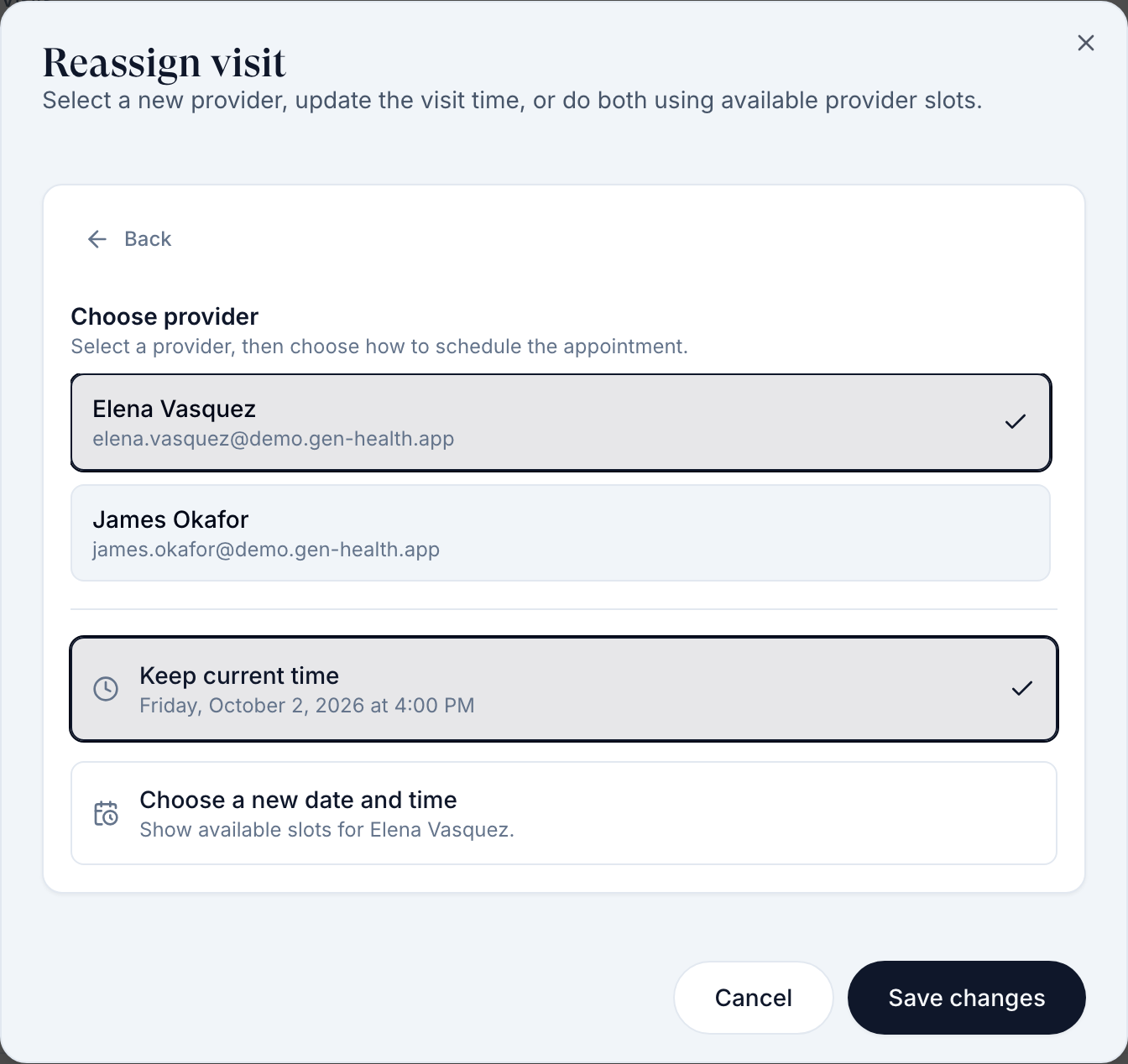
Choose provider or time
Click Reassign. Choose Provider keeps the time or picks a new slot; Choose Date and Time starts from an open slot. Then Save changes.
Use the other tools
Create Visit books a visit. Show calendar opens the Network calendar. Active Providers → Schedule edits a provider's hours; Visit Types sets durations and prices.
You'll know it worked when the toast reads Visit reassigned successfully.
Who can do this: Provider Network Admin and Provider Delegate. Delegates can't join calls.
Statuses you'll see here
| Status | What it means | Who acts next | What you do |
|---|---|---|---|
| Confirmed | Booked | Provider | Start it on time. |
| In Progress | The call has started | Provider | Finish the chart. |
| Pending Patient Scheduling | Waiting for the patient to pick a time | Patient | Admins can resend the scheduling email from the row menu. |
| Provider No-Show | No provider joined within the grace period | Admin | Reassign or rebook. |
| Approved | A decision is recorded | Provider | Prescribe if needed. |
What can go wrong
| What you see | Why | Fix |
|---|---|---|
| Provider No-Show though the patient was the one missing | No provider joined within the grace period | Ask your Provider Network Admin to correct the status and rebook. |
| This visit is rescheduled. Charting resumes at the new appointment. | The visit was moved to a new time | Chart it at the new appointment. |
| Booked for a patient in a state you aren't licensed in | Your credentials don't match what the booking used | Ask your admin to reassign; keep Credentials current. |
| A patient booked outside your hours, or you're double-booked | Known problem | Raise a ticket in Support with the visit time. Connect Google Calendar so busy time blocks bookings. |
| Patients can't find a same-day slot | Your network's Minimum advance booking time | Ask your admin; it's set in Settings → Operations. |
Questions people ask
At what point does the system mark a sync encounter as a no show?
After the Grace period in Settings → Operations → Provider no-show (5 minutes by default, up to 60), checked every couple of minutes. If no provider has joined by then, the visit becomes Provider No-Show.
How can we reassign a sync encounter to another provider?
A Provider Network Admin or Provider Delegate opens the visit's ⋮ on the All Visits tab → Reassign → Choose Provider → Save changes.
Is there a way to change the duration of sync visits?
Yes, as an admin: SYNC Visits → Visit Types, then edit the visit type.
Can patients book a sync visit for the same day?
Only if your network's Minimum advance booking time allows it; 0 allows immediate booking.
Are scheduled sync visits integrated with Google Calendar?
Yes: My schedule → Overview → Connect Google Calendar. Visits are added and your busy time blocks bookings.
Related
Was this helpful?