
Dashboard
The network admin Dashboard: approve client go-live requests and lab reviews, check queue health every morning, reopen recent visits and prescriptions, and finish the setup checklist.

Your Dashboard shows what needs you today: client go-live and lab review requests, providers stuck in setup, the latest visits and prescriptions, and your team. Left menu → Dashboard. Provider Network Admin (Providers and Provider Delegates get their own dashboard).
What you can do here
- Approve a client's go-live request
- Answer a client's lab review request
- Check queue health every morning
- Open a recent visit or prescription
- Work through the setup checklist
Approve a client's go-live request
Use this when a client in sandbox mode asks to go live.
Find the card
Under Action items, a Go-live request card names the client: Approve to turn off sandbox mode and enable external fulfillment.
Check the client
Click View client profile and confirm their test order went through. The full test is in Go live.
Approve
Click Approve.
You'll know it worked when the card disappears and Sandbox mode is unticked in the client's Configuration. New prescriptions and lab orders now go to pharmacies and labs.
Who can do this: Provider Network Admin of the client's primary network. Only the client's Client Admin can send the request.
Answer a client's lab review request
Use this when a client asks whether a lab panel they offer meets one of your protocols.
Open it
On the Lab review requested card, click Review panel.
Answer
Compare Minimum biomarkers with the client's panel, then click Approve this panel, or type in Reply to the client (optional) and click Decline with reply.
You'll know it worked when the card leaves your Dashboard. Details: Labs.
Who can do this: Provider Network Admin.
Check queue health every morning
Use this at the start of each day to catch patients who are waiting, before a client asks.
Clear the Dashboard
Answer any Action items. If the Onboarding tile is above 0, a provider can't work yet: open Providers.
Read the queue
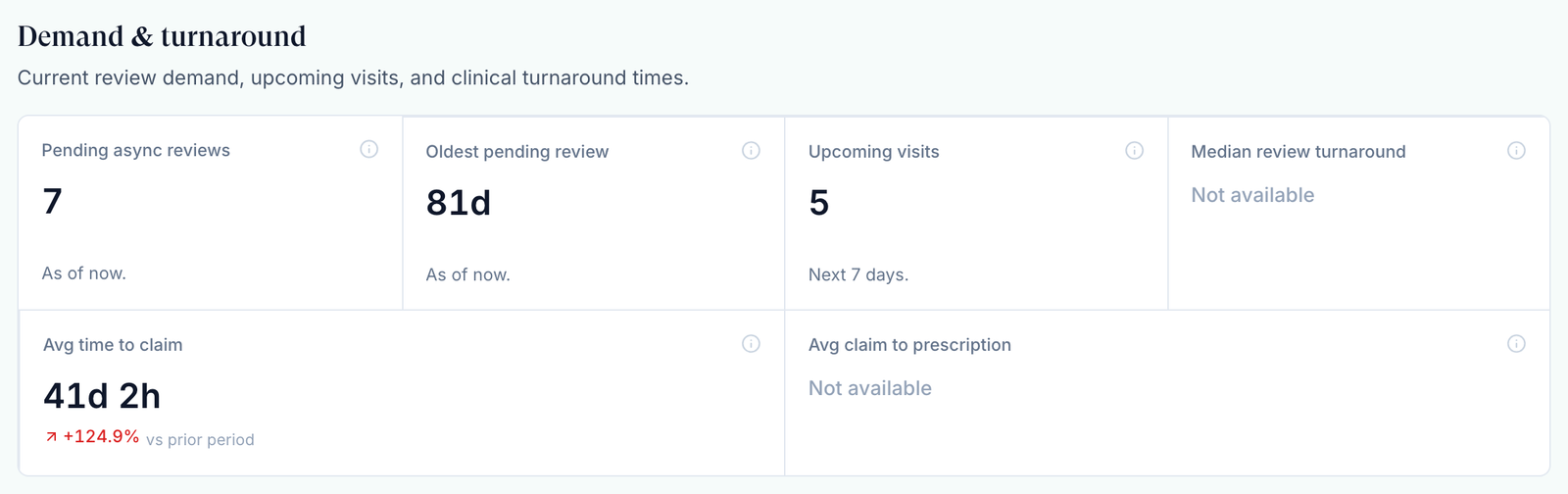
Click Open reports. Under Demand & turnaround, Pending async reviews and Oldest pending review show what is waiting right now.
Find the client
Pick a client in All clients at the top to see which brand is waiting.
Move old reviews
Open Visits (ASYNC), sort by Submitted, and assign or reassign anything waiting too long.
Check live visits
Upcoming visits counts the next 7 days. In Visits (SYNC), Active Providers shows who is on today.
Clear approvals
Notifications holds provider hour, NPI and licence changes waiting for you.
Check prescriptions
On Prescriptions, a banner reads N prescriptions require approval when client requests are waiting.
You'll know it worked when Oldest pending review is within the turnaround you promise clients and nothing is left under Action items.
Who can do this: Provider Network Admin. Provider Delegates can move visits but see only their own numbers in Reports.
Open a recent visit or prescription
Use this to jump back into something that just changed.
Open a row
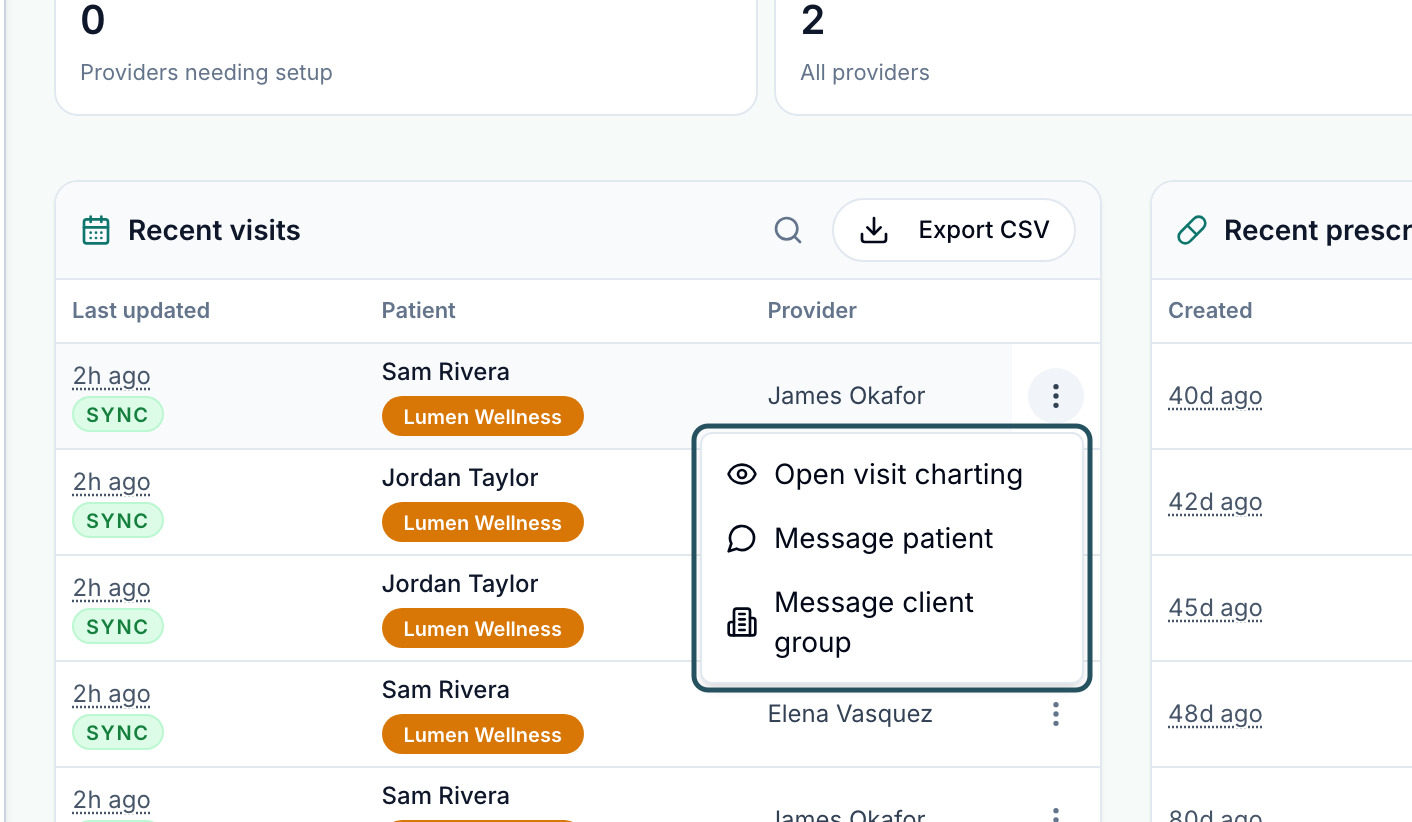
Click a row in Recent visits to open the chart, or in Recent prescriptions to see the prescription.
Use the row menu
⋮ → Open visit charting, Message patient or Message client group. A failed prescription's menu offers Fix & resubmit. The search icon and Export CSV above each table filter and download it.
You'll know it worked when the charting window or the prescription opens.
Who can do this: Provider Network Admin, across the whole network.
Work through the setup checklist
Use this while your network is new. The Set up your account card is shared: a tick shows for every admin.
Open an item
Click its name. What to do links to the page: Invite your team goes to the Dashboard's Users card, Connect your payment processor to Billing.
Do it, then tick it
Click Mark as done. Ticking changes nothing by itself. At 100% the card reads You are all set; Dismiss removes it for everyone.
You'll know it worked when the progress line reads 2/2 · 100%.
Who can do this: any Provider Network Admin. GEN Health writes the items.
What's on this page
| Control | What it does |
|---|---|
| Onboarding | Providers and Provider Delegates who haven't finished setup |
| Providers | Every Provider and Provider Delegate account |
| Linked Clients | Clients connected to your network |
| Open reports | Opens Reports |
| Users | Your team. Add invites admins and delegates; see Providers |
Statuses you'll see here
| Status | What it means | Who acts next | What you do |
|---|---|---|---|
| Under Review | A provider has the chart open | Provider | Wait, or reassign if it's old |
| Confirmed | A video visit is booked | Provider | Nothing |
| No RX (beside Approved) | Approved with no prescription yet | Provider | Check if one was expected |
| Queued | A prescription waiting out the review window | Nobody | It sends on its own |
| Failed | The pharmacy didn't accept the prescription | You or the provider | Row menu → Fix & resubmit |
Other statuses: Visits (ASYNC) and Prescriptions.
What can go wrong
| What you see | Why | Fix |
|---|---|---|
| A paid patient isn't in any provider's queue | Forms, labs or payment aren't done, or the client is in sandbox mode and its visits are hidden | Search All Visits; switch Live Visits Only to Sandbox Visits Only for test clients. No row means the order is waiting in Orders. |
| A visit in Recent visits shows a later date than it happened | The column is Last updated; pharmacy tracking updates move it | Open the visit for the decision date. |
| A client says they asked to go live, but there's no card | They haven't clicked Request go-live, or you aren't their primary network | Ask their Client Admin to click SANDBOX MODE in their menu → Request go-live. |
| This request has changed. Refresh the dashboard before approving. | The client sent a new request | Reload the page and approve the current card. |
| Onboarding stays above 0 | A provider stopped part-way through setup | Providers → row menu → Send magic link. |
Questions people ask
What else do we need to do before a client goes live?
Run one test order end to end, then approve the request here. The steps are in Go live.
Do my providers see this dashboard?
No. Providers and Provider Delegates get their own: their messages, review counts and recent visits. They never see Users, go-live requests or the checklist.
Is the checklist the same as the setup wizard I saw at first sign-in?
No. The wizard blocks the app until you finish it; the checklist is a shared reminder list that blocks nothing.
Why does Onboarding say 1 when everyone has signed in?
It counts unfinished setup, not sign-ins. Someone signed in and stopped part-way.
Related
Was this helpful?