
Labs
Your network's lab panels: check markers and cost, link a panel to a protocol with Link protocol, approve a client's lab panel from the Dashboard, and add a new panel.

Labs lists the lab panels (bloodwork, at-home kits, walk-in draws) your network offers clients, and links them to the protocols that require labs. Left menu → Labs. Provider Network Admin; Providers and Provider Delegates can browse it read-only. Available once a lab integration is switched on in Integrations.
What you can do here
- Check a panel's markers and cost
- Make a panel count for a protocol
- Approve a client's lab panel
- Add a lab panel
- Set what a protocol's lab requirement needs
Check a panel's markers and cost
Use this before you link a panel to a protocol or answer a client's question about it.
Find the panel
Search in Search labs, or filter with All labs (the reference lab), All methods (test kit, walk-in, at-home phlebotomy), Target audience or All markers.
Read its markers and cost
Click the row to see every biomarker. Hover Cost for Lab price, Home blood draw, Processing fee and Total.
You'll know it worked when the markers list opens beside the row.
Who can do this: Provider Network Admin, Provider and Provider Delegate.
Make a panel count for a protocol
Use this when patients on a protocol should be able to use this panel.
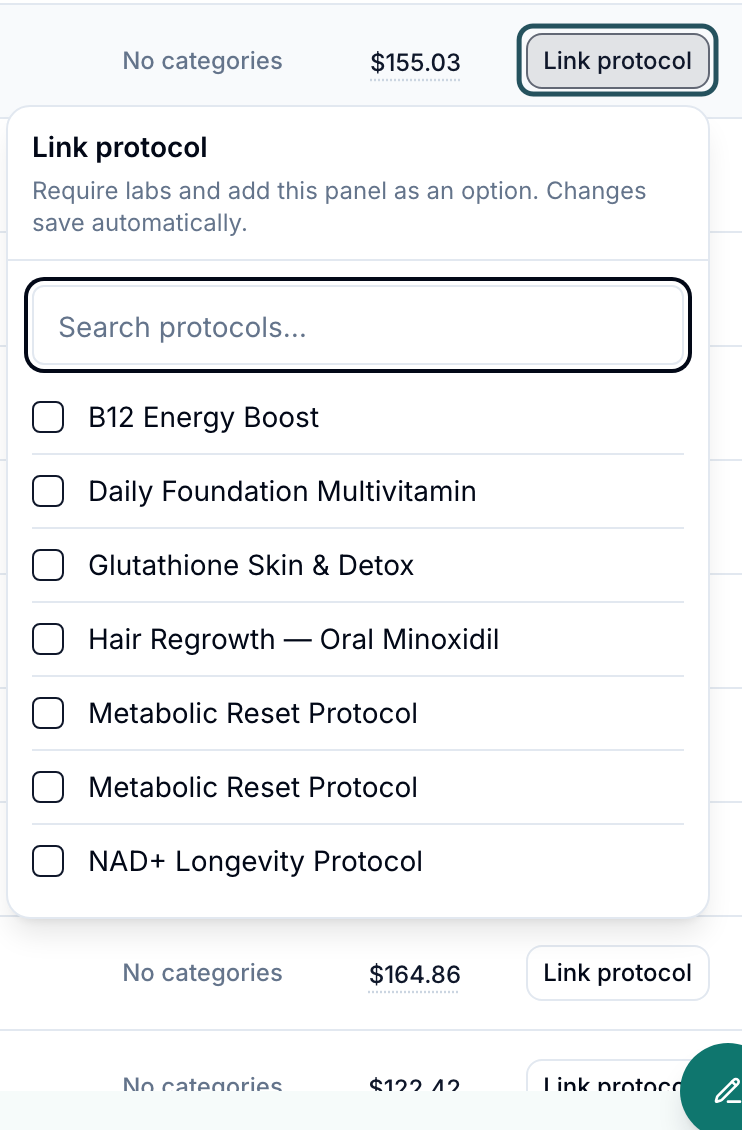
Open Link protocol
Click Link protocol on the panel's row.
Tick the protocols
Tick each protocol. Changes save automatically. Ticking turns on Requires labs for that protocol; if it had no biomarkers yet, the panel's markers become its minimum.
You'll know it worked when the protocol stays ticked when you reopen Link protocol, and its Labs? cell on Protocols reads Required.
Who can do this: Provider Network Admin.
Approve a client's lab panel
Use this when a client asks whether a panel they offer meets one of your protocols.
Open the request
On your Dashboard, under Action items, find Lab review requested and click Review panel.
Compare the markers
Lab review shows the protocol's Minimum biomarkers (unmatched ones highlighted) next to the client's panel, plus any Client note.
Answer
Click Approve this panel (or Approve for the client), or type in Reply to the client (optional) and click Decline with reply.
You'll know it worked when the card leaves your Dashboard. Approving says the panel now qualifies; declining sends your reply to the client's product.
Who can do this: Provider Network Admin.
Add a lab panel
Use this when the panel you need isn't in the list.
Pick the reference lab
Click Create Lab and choose the lab under Which lab is this panel for?
Choose the panel source
Use an existing panel from the lab's catalog (no approval wait), or Create a new panel from markers.
Choose collection and contents
Pick the collection method, then the panel or the markers, and click Continue.
Review and finish
On Review lab product, set the name, price and categories, then click Add Panel or Create Panel.
You'll know it worked when the toast reads Lab created successfully, or Lab submitted to Junction for a new marker panel, which waits for the lab's approval.
Who can do this: Provider Network Admin. Panels your network created show Edit on the row.
Set what a protocol's lab requirement needs
The rule lives on the protocol, not here: open Protocols → the protocol → Requires labs and set Minimum biomarkers, Suggested qualifying labs and Result recency. See Require labs for a protocol. Patients then order or upload labs before the visit; clients activate and price the panels they sell.
What can go wrong
| What you see | Why | Fix |
|---|---|---|
| No enabled lab integrations | No lab integration is switched on for your network | Turn one on in Integrations → Labs, or ask GEN Health Support. |
| This lab has no confirmed biomarkers. Review its biomarkers before linking a new lab requirement. | The panel's markers aren't listed yet | Pick another panel, or add the biomarkers on the protocol first. |
| A test kit panel shows 1 marker | Its biomarker list hasn't been reviewed | Don't rely on it for a biomarker rule; raise a ticket in Support. |
| A client's lab won't activate: Platform payment method required | The client has no GEN Health payment method on file | The client adds one in Settings → Account and billing. |
| Patients still can't see labs after you linked them | The client hasn't activated and priced the panel | Ask the client to activate it on their Labs page. |
| Patients aren't asked to book a visit when results arrive | They bought a lab on its own; only products that require labs prompt a visit | Sell the lab through a protocol with Requires labs. |
Questions people ask
How do patients order the labs a protocol requires, at-home kit or local draw?
At checkout they upload recent results or buy one of the client's lab panels. The method (Test kit, Walk-in, At-home phlebotomy) comes from the panel.
What are the TRT biomarker requirements for initial and follow-up labs?
Whatever your protocol lists under Minimum biomarkers. Use separate protocols, or Clinical rules, for follow-ups.
Why does the patient price look cheaper than the cost?
Cost includes the lab price, any home draw and the processing fee. The client sets the patient price.
Can a provider order labs from the patient's chart?
Yes: Need Clarification → Request labs in the charting window.
Where do I switch a lab on for patients?
You don't. The client activates, prices and shows it on their own Labs page.
Related
Was this helpful?