
Provider profile
A provider's profile: add, bulk-upload and verify state licences, update expiring ones, check NPI and DEA, assign clients, approve hour changes, and offboard without stranding patients.

A provider's profile holds what decides whether they get work: licences, NPI and DEA, assigned clients, protocols, hours and activity. Left menu → Providers → click the provider. Provider Network Admin; providers edit their own from My schedule.
What you can do here
- Add a state licence
- Verify or reject licences
- Update a renewed or expiring licence
- Check the NPI and DEA
- Choose which clients they serve
- Approve a change to their hours
- Offboard a provider without stranding patients
Add a state licence
Use this when a provider sends you a new licence.
Open Credentials
Click the Credentials tab.
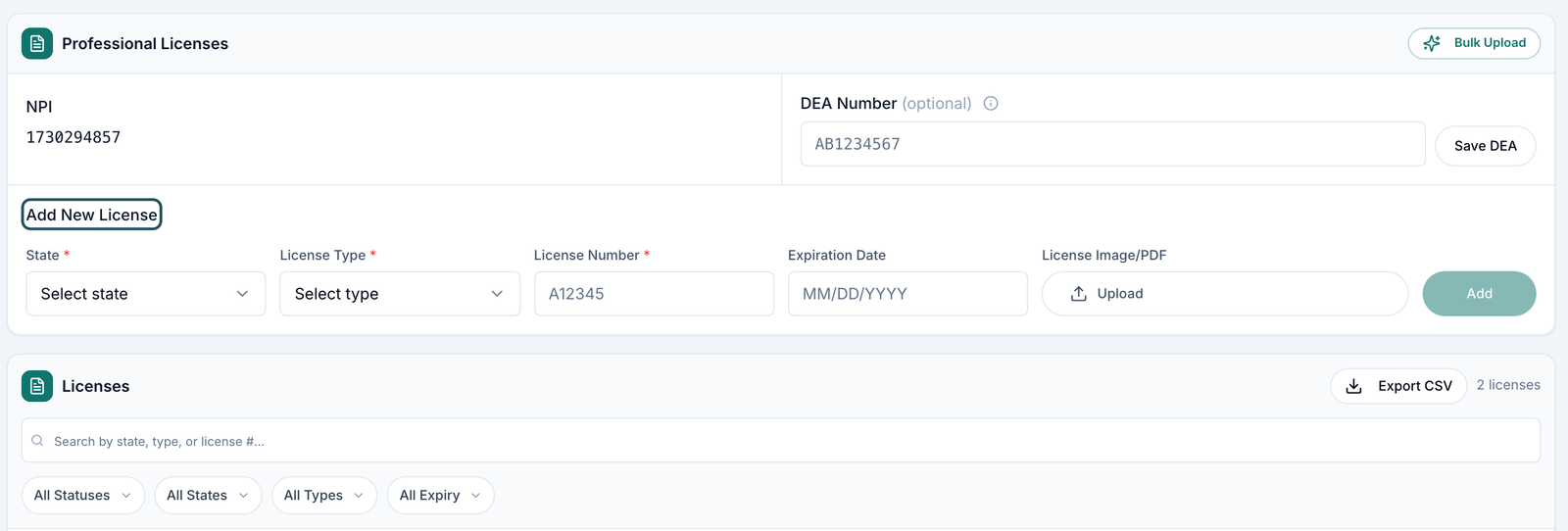
Fill in Add New License
Choose State and License Type, type the License Number and Expiration Date (MM/DD/YYYY), and Upload the image or PDF.
Click Add
For many, use Bulk Upload: upload a CSV or Excel file, or paste rows, then click Upload.
You'll know it worked when the toast reads License submitted for review and the row shows Pending.
Who can do this: Provider Network Admin; each Provider for themselves. Every new licence starts as Pending.
Verify or reject licences
Use this when a licence is waiting for review. Providers can only claim visits in states with a verified licence.
Find pending licences
On Credentials, set All Statuses to Pending. Notifications → License changes → Open credentials brings you here too.
Check the document
Open it from the row's document icon.
Set the status
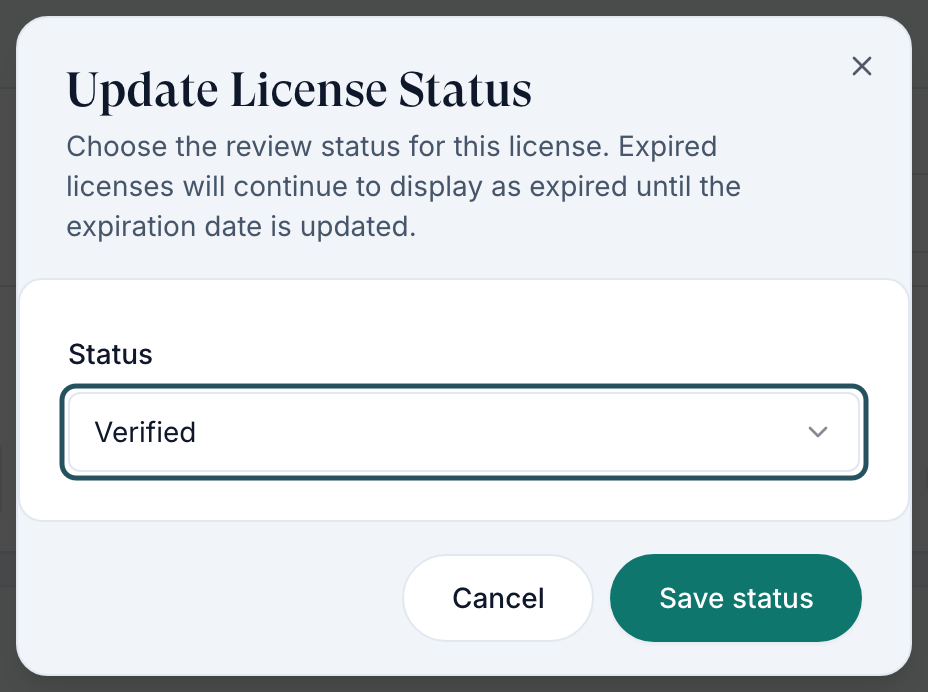
Click Verify, or click the row's status to open Update License Status, pick a Status (Rejected needs a reason) and click Save status. For several, tick them and use Verify or Reject in the bar.
You'll know it worked when the toast reads License status updated (or licenses updated for several) and the provider gets an email.
Who can do this: Provider Network Admin.
Update a renewed or expiring licence
A verified licence is locked, so its date can't be retyped until you move it back to Pending.
Unlock it
If it reads Verified or Expiring Soon, click the status → Pending → Save status. An Expired licence is already editable.
Change the date, then verify
Click the date under Expires, type the new date, press Enter, then click Verify.
You'll know it worked when the toast reads Expiration date updated and the row reads Verified with the new date.
Who can do this: Provider Network Admin. To find them, filter All Expiry → Expiring Soon (within 30 days). There's no network-wide expiry list; check each provider.
Check the NPI and DEA
Use this when a prescription or claim fails with an NPI or DEA message.
NPI
You can't edit the NPI. The provider clicks Request change; you Approve or Reject it in Notifications → NPI changes.
DEA
Type the number in DEA Number (optional) (two letters and seven digits) and click Save DEA. Visits for controlled medications only go to providers with a DEA on file.
You'll know it worked when the toast reads DEA number saved, or the new NPI shows after approval.
Who can do this: Provider Network Admin; providers can save their own DEA.
Choose which clients they serve
Use this after a provider goes Active, or when they can see a visit but get Provider is not assigned to this client.
Open Capabilities
Click the Capabilities tab.
Tick their clients
Under Assigned clients, tick each client and click Save assignments. A client with nobody ticked offers all active providers.
Adjust protocols if asked
Preferred Protocols starts all ticked. Unticking only hides a protocol from their default list. Click Save preferred protocols.
You'll know it worked when the toast reads Client assignments updated.
Who can do this: Provider Network Admin; providers can't change their clients. Clients → Assigned Providers works too.

Approve a change to their hours
Use this when a provider cuts their hours and your network requires approval.
Open the request
Notifications → Availability → click the request. Open schedule shows their hours.
Decide
Click Approve or Reject. To set hours for them, use the Scheduling tab.
You'll know it worked when the request leaves the list.
Who can do this: Provider Network Admin.
Offboard a provider without stranding patients
Deactivating moves nothing: their visits and charts stay with them until reassigned. Move the work first.
Reassign open chart reviews
Visits (ASYNC) → In Progress: click their name under Assigned To → Reassign provider. There's no bulk reassign.
Move booked video visits
Visits (SYNC): each future visit's ⋯ → Reassign.
Take them off their clients
Capabilities → Assigned clients: untick → Save assignments.
Check what's waiting on them
Look in Prescriptions and Messages for anything they still owe.
Deactivate
Providers → row ⋯ → Deactivate → Set to deactive.
You'll know it worked when the toast reads Provider status updated to deactive and they only appear with Inactive ticked in the status filter.
Who can do this: Provider Network Admin. Records stay; Activate restores the account. To close their ScriptSure account too, raise a Support ticket.
Statuses you'll see here
| Status | What it means | Who acts next | What you do |
|---|---|---|---|
| Pending | Added, not yet reviewed | You | Verify or reject it. |
| Verified | Approved and locked | No one | Nothing until it nears expiry. |
| Expiring Soon | Verified, expires within 30 days | The provider | Get the renewal and update the date. |
| Expired | Past its date; blocks that state | You | Update the date; it stays Expired until you do. |
| Rejected | You refused it, with a reason | The provider | They add a corrected licence. |
| Inactive | Retired by an admin | No one | Nothing. |
What can go wrong
| What you see | Why | Fix |
|---|---|---|
| Provider is not licensed for a state they're licensed in | The licence is Pending or Expired, or the patient's state is blank or misspelt | Verify it or update its date; fix the patient's state. |
| The expiration date won't edit | Verified licences are locked | Set it to Pending first (see above). |
| Provider is not assigned to this client | The client isn't ticked under Assigned clients | Tick it and click Save assignments. |
| A DEA is on the profile but a controlled prescription still fails | The pharmacy side hasn't picked up the number | Save the DEA again; if it still fails, raise a ticket in Support. |
| No APRN licence type | The list has NP, not APRN | Nurse practitioners choose NP. |
Questions people ask
Can providers update their own licences?
Yes, from My schedule → Credentials → Add New License. You still verify each one.
Why was a provider assigned a visit outside their Preferred Protocols?
Preferred Protocols only sets what they see by default. Admin assignment and claiming ignore it.
How do I remove a licence a provider no longer holds?
Click the bin icon on its row and confirm Remove license, or set it to Inactive to keep the history.
Related
Was this helpful?