
What each provider must complete
For new providers: what to have ready, each setup question from NPI to agreements, the required reading, and when visits start reaching you. Admins: how to check progress.
Before you see patients, you answer nine setup questions and your network verifies your licences. The questions open from your invitation email; later, click your name at the bottom of the left menu → Review onboarding. Provider; Provider Delegates answer only the details and agreements questions.
What you can do here
- Confirm who you are
- Add your licences, work type and signature
- Clear the required reading
- Know when you can start seeing patients
- Check a provider's progress (admins)
Confirm who you are
The first three questions. None can be skipped.
Have ready: your 10-digit NPI, a photo or PDF of a government ID (under 10 MB), and each state licence's number, expiry date and copy.
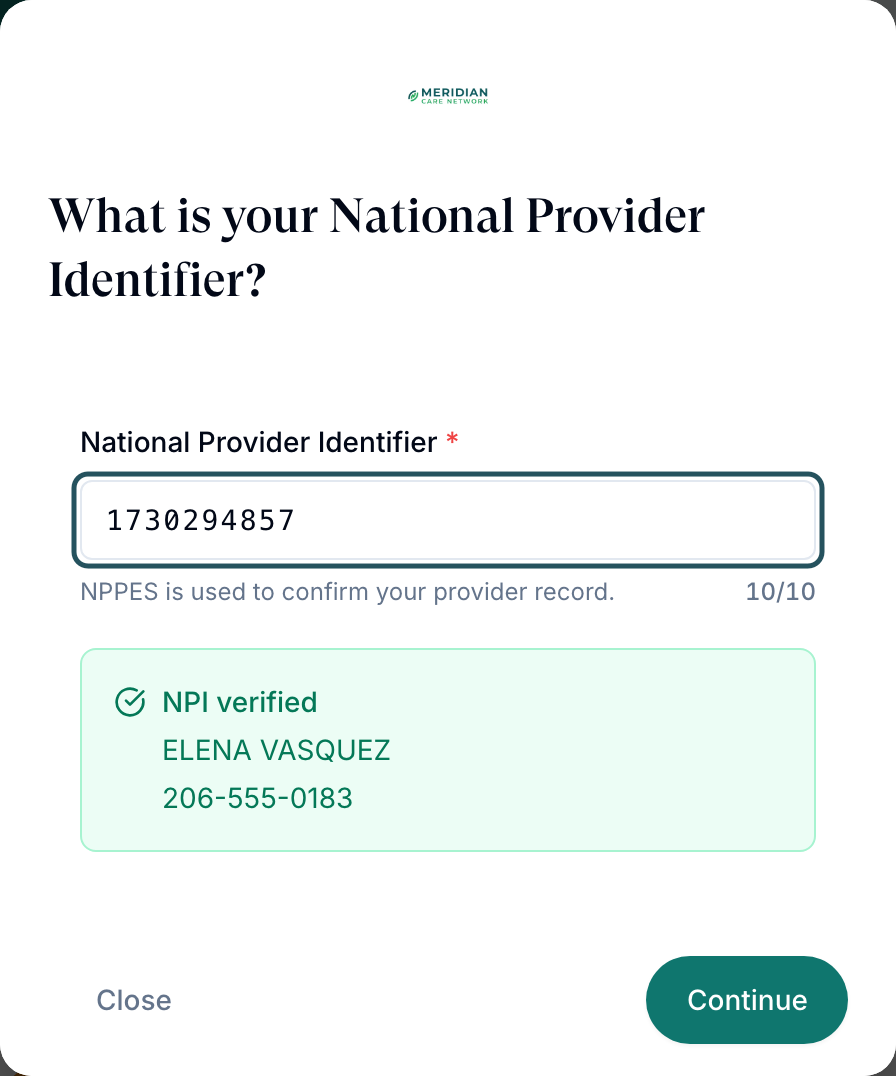
Enter your NPI
What is your National Provider Identifier? Type it and click Continue. NPPES confirms it: NPI verified.
Upload your ID
Can we verify your identity? Drop in your government ID and click Continue.
Check your details
Can we confirm your account details? Check First name, Last name and Phone number, then Continue.
You'll know it worked when How should patients see you? appears.
Who can do this: Provider, on their own account.
Add your licences, work type and signature
The last six questions.
Photo and bio
How should patients see you? Add them, or click Skip for now.
State licences
Which professional licenses do you hold? Add each: State, License type, License number, expiry and a copy. You can add them later.
How you work
How will you work with the provider network? Pick W2 Employee, 1099 Contractor or Healthcare Provider.
Hours
When are you available? Add video-visit hours, or click Continue and use My schedule later.
Signature
Can you add your signature? Draw it; Clear starts again.
Agreements
Ready to review the required agreements? Tick all three boxes and click Complete setup.
You'll know it worked when you see Your account is ready. Click Close.
Who can do this: Provider. Only you can accept the agreements.
Clear the required reading
If your network requires documents, Required Knowledge Base Review opens after setup and can't be closed.
Open each item
Click Review next to each item marked Pending review.
Read it through
It changes to Completed.
You'll know it worked when your Dashboard shows.
Who can do this: Providers and Provider Delegates. Admins set what's required in Knowledge base.
Know when you can start seeing patients
Visits reach you once these are done.
Licences verified
New licences read Pending until your admin verifies them. You claim only in states with a verified licence.
Clients assigned
Your admin picks the client brands you serve (My schedule → Capabilities → Assigned clients).
Hours added
Until then, Set your availability appears at sign-in.
ScriptSure enrolled
If your network e-prescribes, finish the ScriptSure invitation and ID.me check.
You'll know it worked when Visits (ASYNC) shows visits you can Claim.
Who can do this: your Provider Network Admin, except the ScriptSure steps you finish yourself.
Check a provider's progress (admins)
Use this when a new provider hasn't started seeing patients.
Count who's unfinished
Dashboard → Onboarding tile (Providers needing setup).
Read their status
Providers: Account Status reads Onboarding until they finish. A dash under Last Login means they never opened the invitation.
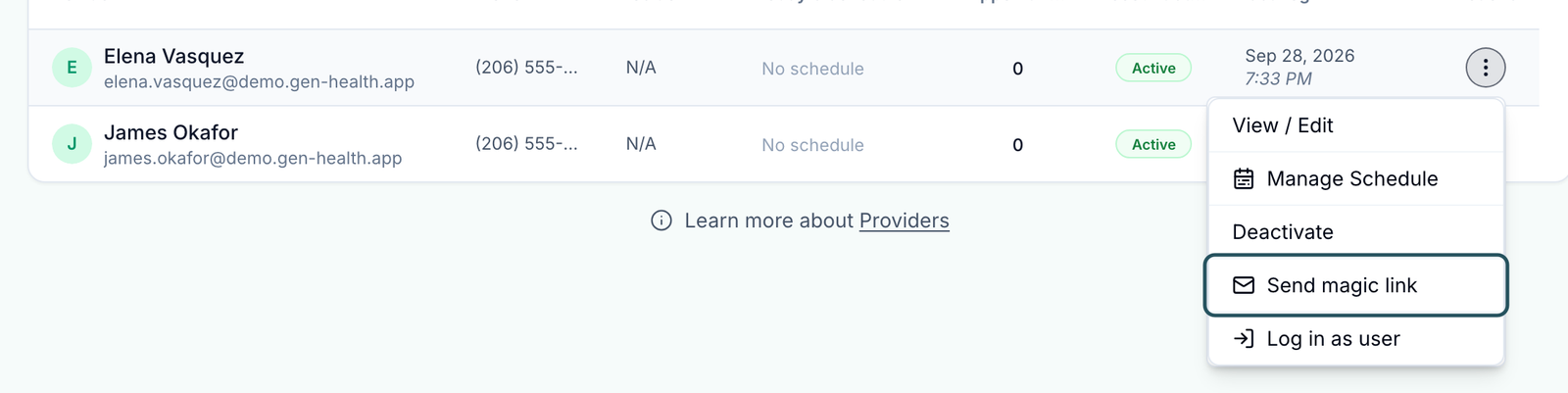
Send them back in
Row ⋯ → Send magic link.
See what they've answered
Open the row: Overview shows Engagement type, Government ID and Signature; Credentials shows NPI and licences.
You'll know it worked when the toast reads Magic link sent to their email.
Who can do this: Provider Network Admin.
What can go wrong
| What you see | Why | Fix |
|---|---|---|
| Unable to verify NPI. Please try again. | NPPES didn't match or didn't answer | Check the number in the NPPES registry and retry. |
| Set your availability keeps appearing | No hours in the next three weeks | Add hours in My schedule. |
| Provider is not assigned to this client | You aren't assigned to that client | Ask your admin to add it to your Assigned clients. |
| You are not licensed to practice in a state you're licensed in | That licence is Pending or expired | Ask your admin to verify it, or add the renewal. |
Questions people ask
How do I change my NPI later?
My schedule → Credentials → Request change. Your admin approves it before it replaces the old one.
My licence was renewed. Do I contact support?
No. Add it under My schedule → Credentials → Add New License; your admin verifies it.
Related
Was this helpful?