
Client profile
One client's settings: choose which providers serve it, turn protocols on or off, set visit fees, flip Sandbox mode and workflow switches, and turn on on-demand visits.
A client's profile holds everything your network sets for that one client: its providers, protocols, visit fees and workflow settings. Left menu → Clients → click the client's name. Provider Network Admin only; Provider Delegates can't open it. Some cards need your network to be the client's primary network.
What you can do here
- Choose which providers serve this client
- Turn protocols on or off for this client
- Set what the client pays per visit
- Change sandbox and workflow settings
- Turn on on-demand visits
Choose which providers serve this client
Use this when only some providers should see and claim this client's visits. This lives on the Clients list, not in the profile.
Switch the list to Table view
On Clients, click Table view (the rows icon next to the grid icon).
Click the Assigned Providers number
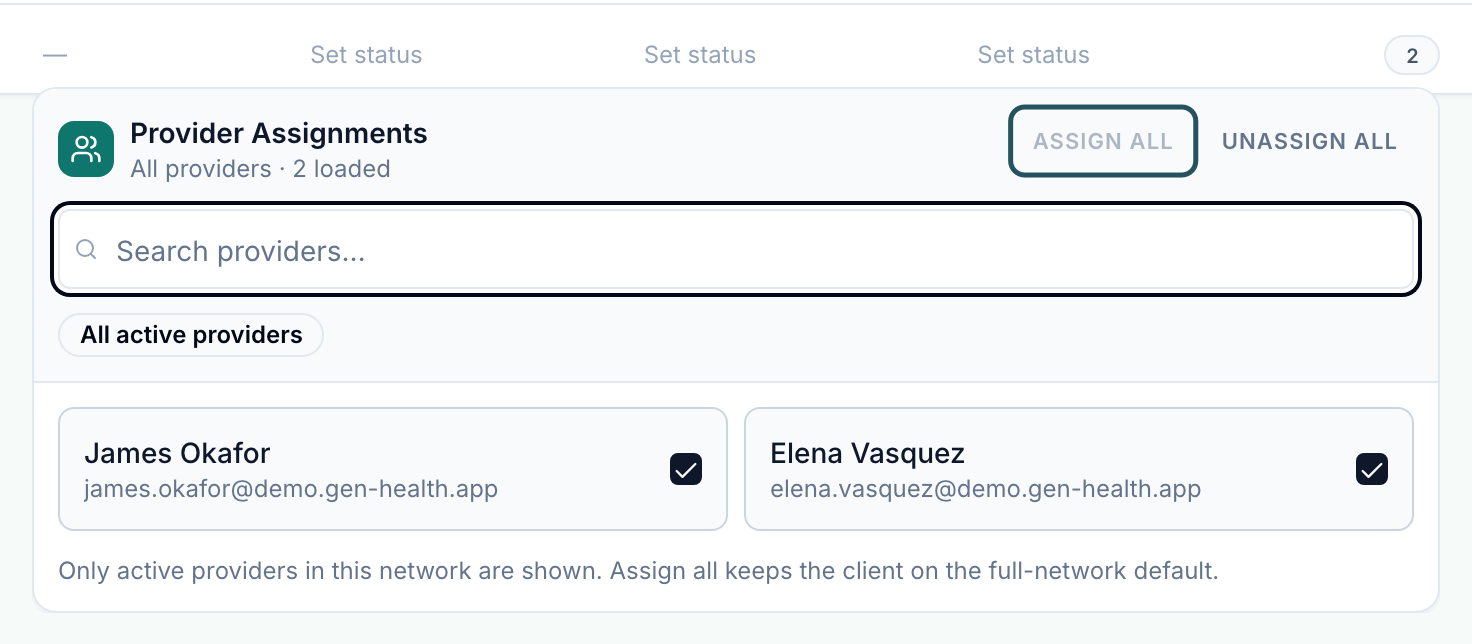
Click the count in the client's Assigned Providers cell. Provider Assignments opens; the badge reads All active providers or Custom assignments.
Pick the providers
Tick or untick providers. ASSIGN ALL keeps every active provider on the client; UNASSIGN ALL starts an empty custom list (up to 50 providers). Changes save as you click.
You'll know it worked when the toast reads Provider assignments saved and the count changes.
Who can do this: Provider Network Admin of the client's primary network. You can also set it per provider: Providers → the provider → Capabilities → Assigned clients → Save assignments. Assignment alone doesn't make a provider eligible: they still need a verified licence in the patient's state.
Turn protocols on or off for this client
Use this to decide which of your protocols the client can sell.
Open Available protocols
On the Administrator tab, click Available protocols. The count shows how many are enabled.
Switch a protocol on or off
Use the switch in the Access column. To change many at once, filter first, then Enable all or Disable all, or apply a saved list with Select preset.
Tell the client what's next
An enabled protocol reaches the client switched off, hidden and unpriced. The client activates it, turns on Show on storefront and sets a price on their Products page.
You'll know it worked when the toast reads Product access enabled for this client. Turning one off asks Disable available protocol?; the client isn't notified but loses that product.
Who can do this: Provider Network Admin of any network the client works with, for its own protocols. Only active protocols with an intake form are listed.
Set what the client pays per visit
Use this before go-live so completed visits are billed.
Open Account and billing
Click Account and billing. The Visit fees card is at the top.
Enter the fees
Type amounts in SYNC Visit, ASYNC Visit and Escalation Fee (charged when an async visit becomes a sync visit). Each field saves when you click away.
You'll know it worked when the toast reads, for example, SYNC Visit Price updated.
Who can do this: Provider Network Admin; each network sets its own fees. What patients pay is set by the client.
Change sandbox and workflow settings
Use this while testing, and to switch features on.
Open Configuration
Click Configuration on the Administrator tab.
Flip the switch you need
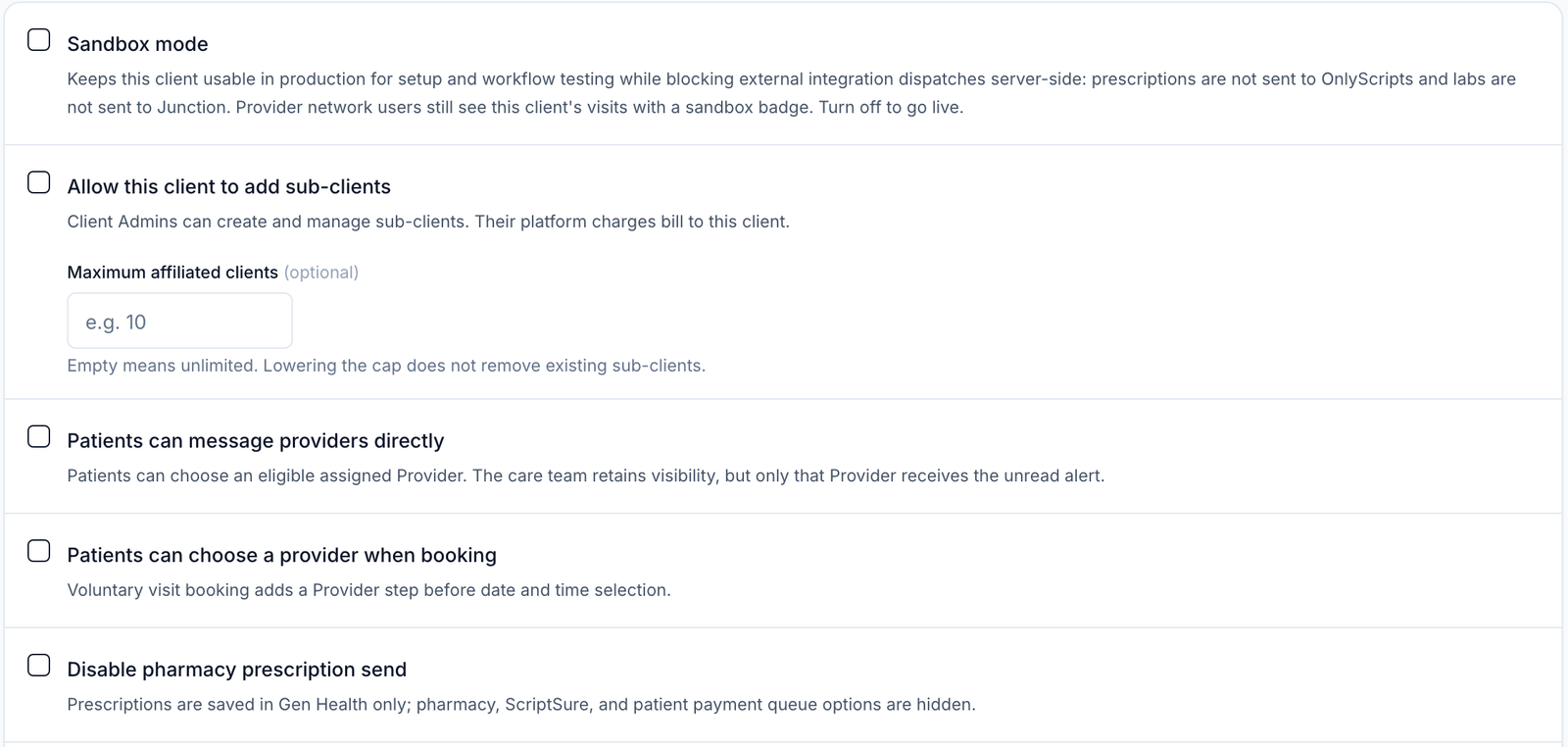
Each switch saves as you click it. See the table below.
You'll know it worked when the toast reads Sandbox mode enabled (or disabled), or Workflow permissions updated for the patient and prescription switches.
Who can do this: Provider Network Admin of the client's primary network only.
| Switch | When it's on |
|---|---|
| Sandbox mode | Prescriptions and labs aren't sent out; visits show a sandbox badge. Turn off to go live. |
| Allow this client to add sub-clients | The client can create affiliated clients, up to Maximum affiliated clients. |
| Patients can message providers directly | Patients can pick an assigned provider to message. |
| Patients can choose a provider when booking | Booking adds a provider step before the time. |
| Disable pharmacy prescription send | Prescriptions are saved in GEN Health only; nothing is sent to a pharmacy. |
| Disable direct-to-pharmacy prescription requests | Client prescription requests are charged to the patient after a provider finalizes them. |
| Client can submit custom intake via API | The client's API can send its own intake answers instead of your forms. |
Turn on on-demand visits
Use this when a clinic wants patients seen now, without booking.
Turn on network claiming first
In Settings → Operations, tick Enable network sync-visit claiming. Until then the switch below is greyed out.
Switch it on for the client
Open On-demand visits, turn on Patients can start a visit on demand, and pick Video call or Phone call.
Choose the alerts
Pick which email alerts and escalations to send while a patient waits.
You'll know it worked when the toast reads On-demand visit settings updated. Your providers then see waiting patients on their On-demand page.
Who can do this: Provider Network Admin of the client's primary network. Phone call needs an active phone number on the client's account.
What can go wrong
| What you see | Why | Fix |
|---|---|---|
| No Configuration or On-demand visits card | Your network isn't the client's primary network | Ask the primary network, or GEN Health Support. |
| Only the primary provider network can change assignments for this client. | Same reason | Ask the primary network to change providers. |
| This custom set exceeds 50 providers. Assign all or unassign all before editing it. | Custom lists hold up to 50 providers | Click ASSIGN ALL, or UNASSIGN ALL and pick fewer. |
| A provider you removed from a client is assigned again and sees its patients | A known problem | Check the client's Provider Assignments and the provider's Assigned clients, then raise a ticket in Support. |
| Only a few protocols show in Available protocols | Inactive protocols and protocols without an intake aren't listed | Activate the protocol and attach an intake form in Forms. |
| Configure required biomarkers before enabling this protocol | The protocol requires labs but lists no biomarkers or approved labs | Add them in Protocols → the protocol → Requires labs. |
Questions people ask
How do we enable custom intake for a client?
Configuration → Client can submit custom intake via API.
How do clients create affiliate accounts, and can we cap them?
Turn on Allow this client to add sub-clients and set Maximum affiliated clients. The client then gets an Affiliated clients page; affiliates inherit your network.
The account is still in test mode. Can we flip it to live?
Turn off Sandbox mode in Configuration, or approve the client's Go-live request on your Dashboard.
Is this client set up under our merchant account?
Check the chip under the client's name. Affiliate means your network's processor collects payment; Review + Prescribe means the client's does.
Can I see what the client sees?
Yes. Client View in the left rail mirrors the client's pages, such as Products.
Related
Was this helpful?