
Knowledge base
Your network's library: add documents, links and folders, make a document required reading for every provider, and put a must-read in front of your whole team.

Knowledge base is your network's library of training and reference documents, and the place you set required reading that every provider must open before they can work. Left menu → Knowledge base. Provider Network Admin manages it; Providers and Provider Delegates read it.
What you can do here
- Add documents, links and folders
- Make a document required reading
- Put a must-read in front of every provider
- Let a provider manage the library
- Clear your required reading (Providers)
Add documents, links and folders
Use this to build the library your providers use on shift. Open the folder you want first: new items land where you're standing.
Make folders
Click Create Folder, type a Folder name, and click Save. Group by the work people do, such as Protocol Training or Prescribing.
Upload files
Click Upload Files and pick PDFs, images or videos (videos up to 100MB, other files up to 10MB). In the Upload Files dialog, add a description and Labels, then click Upload. Keep the tab open until it finishes.
Save a web link
Click Add Link, fill Resource name and URL, and click Save Link.
Tidy up
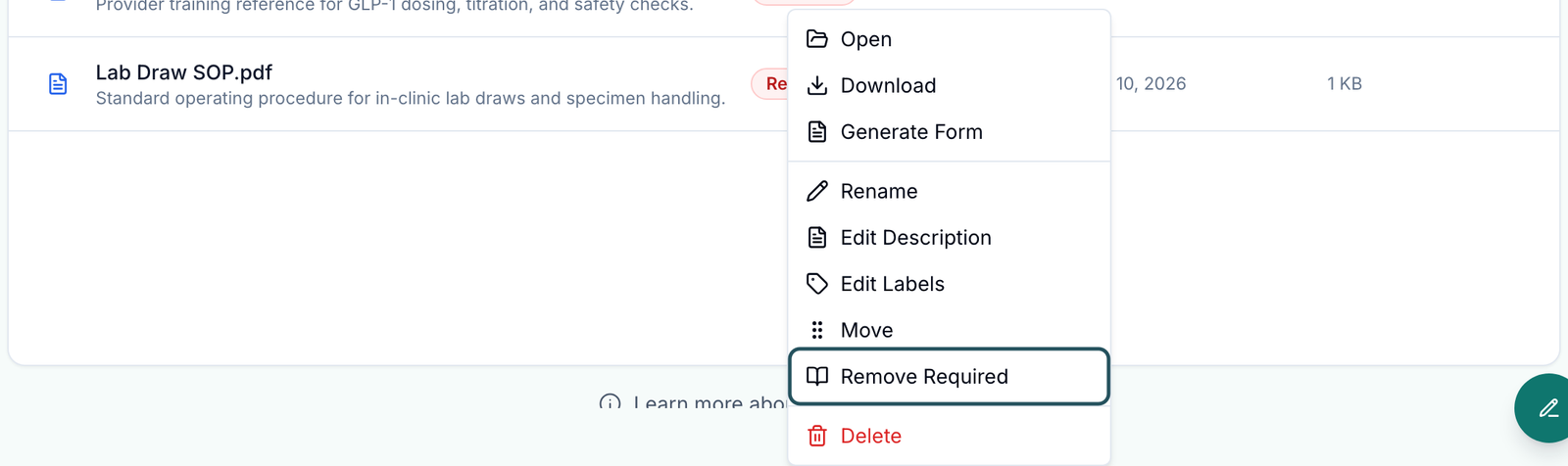
Right-click any item for Rename, Edit Description, Edit Labels, Move or Delete. Delete asks you to type DELETE and can't be undone.
You'll know it worked when the toast reads Folder created, Link saved, or the number of files queued, and the item appears in the list.
Who can do this: Provider Network Admin, and Providers you give access (see below).
Make a document required reading
Use this for a document every provider and delegate must open, such as a new SOP. Each required item blocks them until they open it, so keep the list short.
Mark it
Right-click the document and choose Mark Required. Folders can't be required. To mark a whole upload, tick Mark uploaded entries as required in the Upload Files dialog.
Check the list
Open All Requirements and choose Required. That is exactly what every provider must open.
Lift it later
Right-click the document and choose Remove Required.
You'll know it worked when the toast reads Entry marked as required and a red Required badge appears on the row.
Who can do this: Provider Network Admin, and Providers with library access. Admins are never blocked by required reading.
Put a must-read in front of every provider
Use this when every provider has to see something today, such as a dosing change.
Tell them it's coming
Send a campaign to All staff or By role → Provider from Marketing. Announcements in Messages reach client users, not your providers.
Make it required
Mark the document required (above). Every Provider and Provider Delegate gets a Required Knowledge Base Review window on their next page load and can't close it until they open it.
Link it where it's used
On Protocols, the row action Manage knowledge base links shows the document to providers while they review that protocol.
You'll know it worked when providers tell you they saw the window. There's no report of who has read what.
Who can do this: Provider Network Admin.
Required reading appears mid-shift. Warn providers first, and mark items required outside peak hours.
Let a provider manage the library
Use this when a lead provider keeps your training material up to date.
Open the provider
Left menu → Providers, click the provider, stay on Overview.
Grant access
Under Access controls, tick Provider can manage knowledge base content.
You'll know it worked when the provider sees Upload Files, Add Link and Create Folder.
Who can do this: Provider Network Admin. Provider Delegates can't be given access.
Clear your required reading (Providers)
Use this when a Required Knowledge Base Review window blocks the app.
Open each item
Click Review beside each Pending review item. It turns Completed. Videos count only when watched to the end.
Close the preview
When the last item is Completed, the window disappears by itself.
You'll know it worked when the window is gone and the app works as normal.
Who can do this: Provider, Provider Delegate.
What can go wrong
| What you see | Why | Fix |
|---|---|---|
| Providers report a window they can't close | A document was marked Required | They click Review on each item, or you choose Remove Required. |
| A video stays Pending review after opening | Videos count only when played to the end | Watch it through, or share a PDF instead. |
| An upload stops halfway | The tab was closed or reloaded | Upload again and keep the tab open. |
| A file is rejected | Only PDFs, images and videos, up to 10MB (videos 100MB) | Compress it, or use Add Link. |
| A provider can't upload | Library access is off for them | Tick Provider can manage knowledge base content on their profile. |
Questions people ask
Can I see who has read a required document?
No. There's no completion report. Ask providers to confirm, or check with a provider directly.
Does the AI read our knowledge base?
Only documents linked to a protocol with Manage knowledge base links. The rest is a document store.
Can patients see anything here?
No. The network library is staff-only. Patient material belongs in the client's own knowledge base.
Related
Was this helpful?