
Notifications
The network admin's approval inbox: approve or reject a provider's reduced hours, approve an NPI change, review new licences, and clear the rest.

Notifications is where a Provider Network Admin approves the changes providers ask for (fewer hours, a new NPI, new licences) and reads alerts sent to them. Left menu → Notifications; the number beside it is your unread count. Provider Network Admin only.
What you can do here
- Approve or reject a provider's reduced hours
- Approve an NPI change
- Review new licences
- Clear everything else
Not everything that needs you is here. Client go-live and lab panel requests are on the Dashboard under Action items, which appears only when something is waiting. Prescriptions waiting for approval are on Prescriptions. Providers have no Notifications page.
Approve or reject a provider's reduced hours
Use this when a provider removed or shortened hours they had published.
Open Availability
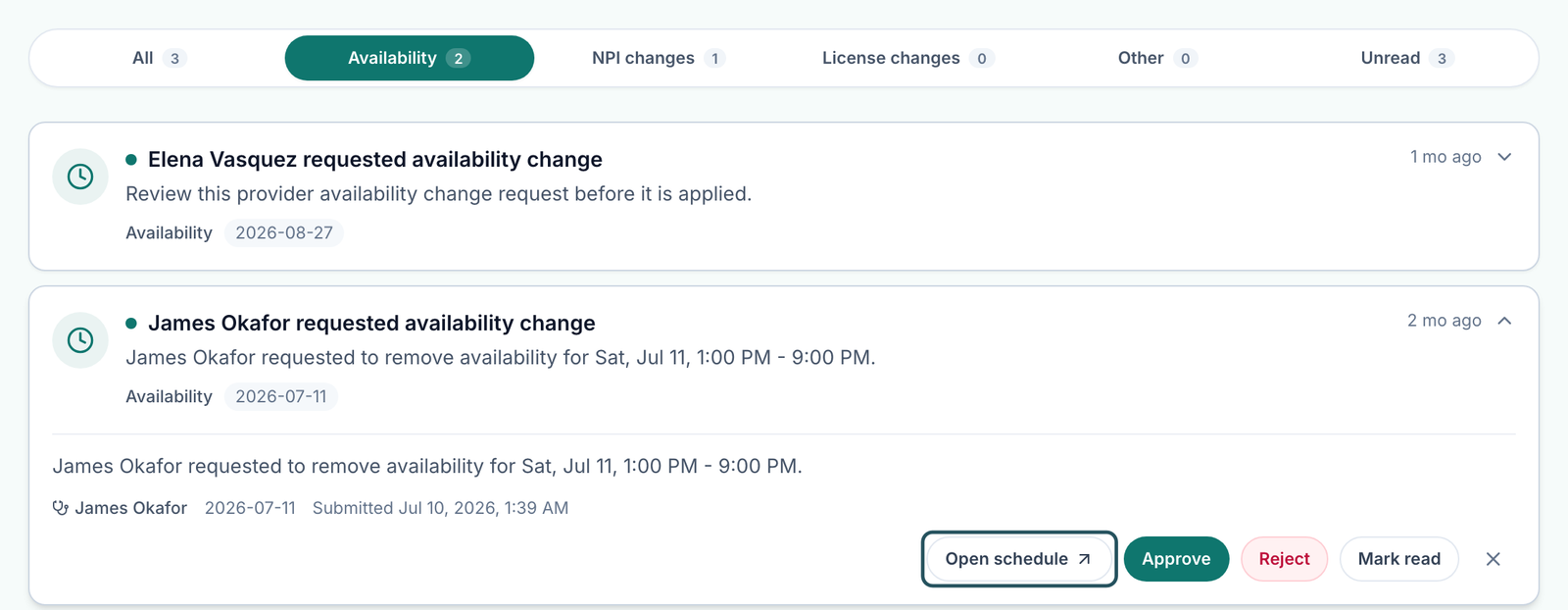
Click the Availability tab. Each row reads {Provider} requested availability change, with the date.
Expand the request
Click the row to see the hours being removed and when it was submitted. A visit conflicts chip means patients are already booked in those hours; no chip, no conflicts.
Check the schedule
Click Open schedule to see the provider's calendar before you decide.
Decide
Click Approve to apply the change at once, or Reject to keep the hours.
You'll know it worked when the toast reads Availability request approved (or rejected) and the request leaves the tab.
Who can do this: Provider Network Admins. Requests only arrive while Allow provider availability reductions is off in Settings → Operations; when it is on, reductions apply without approval.
Approve an NPI change
Use this when a provider asked to change the NPI their prescriptions are written under.
Open NPI changes
Click the NPI changes tab. Each row shows Current and Requested.
Check the number
Expand the row and click Open credentials to compare it with the provider's documents.
Approve
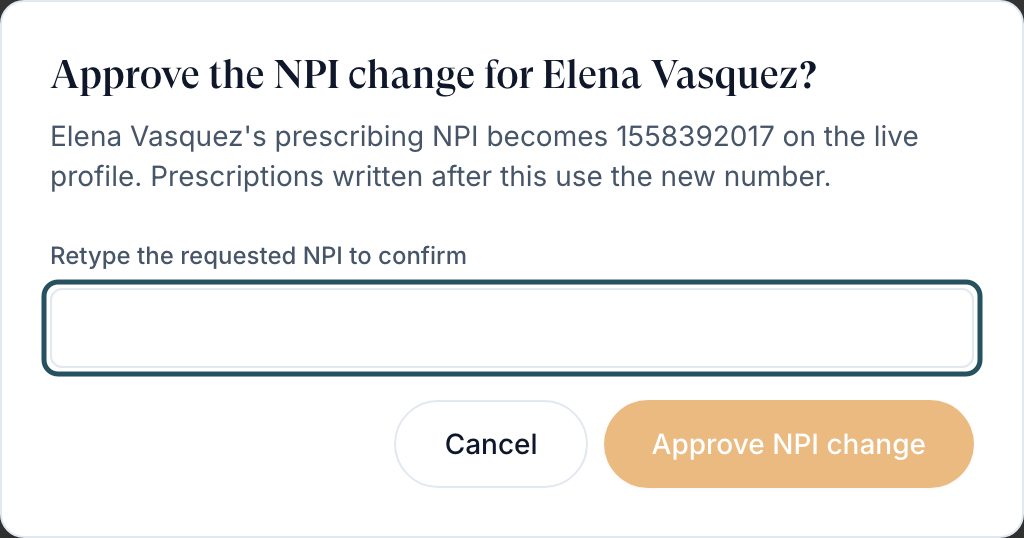
Click Approve. In Approve the NPI change for {Provider}?, retype the requested NPI in Retype the requested NPI to confirm, then click Approve NPI change.
Or reject
Click Reject → Reject request. The provider keeps their current NPI and is told.
You'll know it worked when the toast reads NPI change approved. and scripts written after that use the new number.
Who can do this: Provider Network Admins. It can't be undone, so check the number first.
Review new licences
Use this when a provider uploaded state licences for approval.
Open License changes
Each row reads {Provider} - N pending.
Verify in the profile
Click Open credentials, check each licence document, and verify or reject it there.
You'll know it worked when the row disappears once every licence is reviewed. See Provider profile and readiness.
Who can do this: Provider Network Admins. Until a licence is verified, the provider can't claim visits in that state, unless your network turned off Require patient-state licensure.
Clear everything else
Use this to work through alerts addressed to you, such as bookings and product payment updates.
Open Unread
Unread lists every unread item from every tab; Other holds alerts that aren't approvals.
Act, then mark read
Use the item's own button, then Mark read. Mark all read (top right) clears every dot at once.
Dismiss only finished items
The X (Dismiss notification) removes an item for good.
You'll know it worked when the number beside Notifications in the left menu goes down.
Who can do this: Provider Network Admins.
What can go wrong
| What you see | Why | Fix |
|---|---|---|
| Availability requests never arrive | Allow provider availability reductions is on. | Turn it off in Settings → Operations if you want to approve them. |
| Visits were booked in hours you approved removing | The request had a visit conflicts chip. | Reassign those visits from Visits (SYNC). |
| A request has no Mark read or X | It is an approval with no separate alert. | Approve or Reject it; that clears it. |
| The badge won't clear | Something unread sits in a tab you haven't opened. | Open Unread, then Mark all read. |
| We couldn't load your notifications. Some items may be missing — please refresh. | Part of the page failed to load. | Refresh before you treat a tab as empty. |
Questions people ask
Our providers get lots of emails about queued prescriptions and patient messages. Can we turn them off?
Yes, in Settings → Operations → Provider notifications: Queued prescription requests and Patient messages. Those are emails and texts; this page doesn't send them.
Why do providers get emails about patients they haven't seen?
Queued prescription request emails go to every provider who can prescribe for that patient. Turn the email off under Provider notifications; the in-app alert still sends.
What's the difference between Mark read and dismiss?
Mark read clears the dot and keeps the item. Dismissing removes it for good. Neither approves or rejects a request.
The header says 1 unread but the Unread tab shows 3.
The header counts alerts; the Unread tab also lists pending requests that have no alert of their own.
Where do I approve a client going live or a lab panel?
On the Dashboard, under Action items.
Related
Was this helpful?