
Prescriptions
Every script your network wrote: see what needs approval, finalize a client's prescription request, stop or send a queued Rx before it auto-sends, and fix a failed script.

Prescriptions lists every script (Rx) your network wrote: what needs approval, what is about to auto-send, and what failed. Left menu → Prescriptions. Provider, Provider Delegate and Provider Network Admin see the same table; most scripts are written in the Charting window.
What you can do here
- See what needs approval
- Finalize a client's prescription request
- Change, send or stop a script before it auto-sends
- Fix a failed prescription
See what needs approval
Use this at the start of a shift, or when a client is waiting on you.
Filter the table
When anything is waiting, a banner reads N prescriptions require approval. Click Filter table. The left-menu count matches it.
Work each row
Pending Approval is a client's request (next section). Queued for review marked Awaiting provider approval was kept with Save for later: click Review to check it, then Approve & send.
Go back
Click Show all on the banner.
You'll know it worked when the banner count drops.
Who can do this: Provider, Provider Delegate and Provider Network Admin.
Finalize a client's prescription request
Use this when a client queued a prescription request and it is held for your network.
Find it
Status Pending Approval. A row showing Review visit or Open visit is tied to a visit: it opens the chart, where a Provider charts and prescribes.
Open it
Click Review in the status cell, or row menu ⋮ → Approve prescription. Review prescription draft shows the lines and the client's files.
Choose the prescriber
Admins and delegates pick the Prescribing provider; the list shows only providers eligible for this patient, including a licence in the patient's state. Providers finalize as themselves.
Check the lines, then decide
Check medication, pharmacy, directions (sig), quantity and days supply, then click Approve, or Reject with a reason. Row menu → Cancel prescription removes it. The client is notified.
You'll know it worked when the toast reads Prescription finalized and queued for the review window. If the client chose patient payment, it waits as Awaiting patient payment.
Who can do this: Provider, Provider Delegate and Provider Network Admin.
Provider Delegates: you can finalize a client's request without a Provider approving it first. Exceptions: a request tied to a visit needs a Provider to chart it, and if the sign-off order in Settings → Operations is Prescribe, then sign, a request with a visit is refused (Provider delegates cannot prescribe before the chart is signed.).
Change, send or stop a script before it auto-sends
Use this when a Queued for review script needs a correction, must go now, or must not go. It sends itself when the status-cell countdown ends (Sends in 1h 20m): two hours unless an admin changes Review window in Settings → Operations.
Correct it
Click Edit, change the lines, click Review prescription, then Update prescription.
Send or stop it
Send now skips the wait. Cancel stops it, with every medication in that submission.
You'll know it worked when the status moves to Sent to pharmacy, or the toast reads Prescription cancelled. It will not be sent to the pharmacy.
Who can do this: any Provider in the network, Provider Delegates and Provider Network Admins, until the pharmacy receives it.
Fix a failed prescription
Use this when the status is red: Failed, API Submission Failed, Payment Failed or Error.
Read why
Hover the red status. The card names the problem, How to fix and Who can fix it.
Fix the record it names
Patient phone, address or sex: click the patient's name to open their Profile tab. Prescriber DEA, licence or NPI: their profile → Credentials. Pharmacy payment: the client's Client Admin.
Resend it
Click Fix & resubmit. Correct the script (add the clinical difference statement, change pharmacy), click Review prescription, then send. The failed one is voided. A plain Failed row also offers Resubmit, which resends it unchanged.
Or void it
Click Void in the status cell and enter a reason.
You'll know it worked when the old row reads Voided and the corrected one appears.
Who can do this: the prescriber, a Provider Delegate or a Provider Network Admin. Delegates can't edit patient profiles.
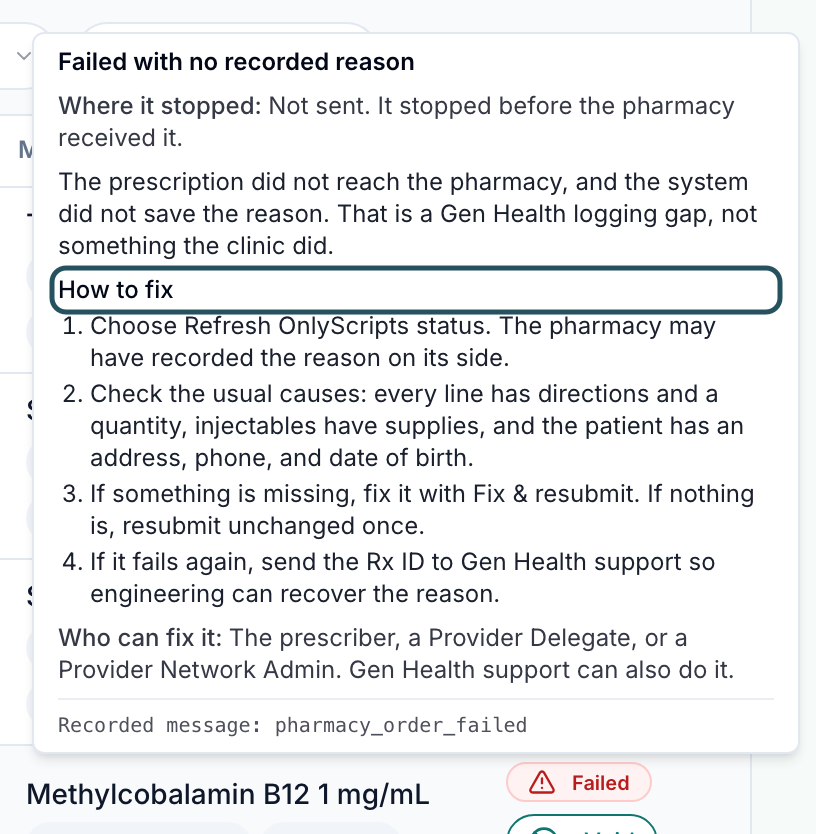
Who handles what: once the pharmacy has a script (status, tracking, a clarification, cancelling), open Support → Create Support Ticket → OnlyScripts and pick the patient and prescription. Failures with no reason go to GEN Health support with the Rx ID.
Statuses you'll see here
| Status | What it means | Who acts next | What you do |
|---|---|---|---|
| Pending Approval | A client's request is held. | Your network | Finalize, reject or cancel. |
| Queued for review | Still with your network, counting down to auto-send (not waiting on the pharmacy). | Your network | Edit, send or cancel. |
| Saved | Recorded, not sent (manual pharmacy, or the client turned pharmacy sending off). | Whoever fills it | Send it outside GEN Health. |
| Need Clarification, On Hold | The pharmacy has a question, often about directions. | Pharmacy, prescriber | Open an OnlyScripts ticket. |
| Failed, Error | It never reached the pharmacy. | Your network | Fix & resubmit. |
| Payment Failed | The pharmacy could not charge the client's pharmacy account. | Client Admin | Don't write a new script. |
What can go wrong
| What you see | Why | Fix |
|---|---|---|
| Patient details missing | No phone, email or date of birth, or sex is not Male or Female. | On the patient's Profile tab fill the field (confirm sex with the patient), then resend. |
| Shipping address incomplete | No full address. | Complete Mailing address, then resend. |
| Clinical difference statement required | Needed for compounded semaglutide and tirzepatide. | Fix & resubmit and fill it in. |
| No payment method on the pharmacy account | The client's OnlyScripts account has no working card. | Client Admin: Integrations → Update OnlyScripts payment method. The pharmacy retries. |
| Pharmacy does not dispense to this state, or the medication isn't in the picker | Pharmacies that don't ship to the patient's state are hidden or refuse it. | Correct the address, or resend to a pharmacy that ships there. |
| Client is in sandbox mode | The client isn't live. | Void test scripts. |
| Only one or two prescriptions show | The approval filter is on. | Click Show all. |
Questions people ask
Where can our admin see prescriptions queued by clients?
Here, under the N prescriptions require approval banner. Pending Approval rows are client requests; admins can finalize them too.
I fixed the patient's address. Do I need to resend?
Yes. Fixing the record resends nothing. Use Fix & resubmit or Resubmit.
The pharmacy is out of stock. Can we reroute the script?
Before it's sent, Edit it and pick another pharmacy. After, ask OnlyScripts to cancel it, then write a new one with Create prescription.
The patient says it "just says processing".
Patients never see failures; every failed or held script reads Processing to them. Open the row here for the real status.
Related
Was this helpful?